Kiosk QR codes: a practical guide for touchless self-service
Use kiosk QR codes to enable touchless interactions, and optional user authentication, at public self-service kiosks. They cut surface contact, speed up throughput at busy check-in points, and give you scan analytics you never had with a keypad or touchscreen alone. Before you roll any of this out, you need three things in place:
- A readable code on screen or printed ticket, sized and positioned for real-world lighting.
- A reliable scanning method, whether that’s the kiosk’s own camera or a dedicated 2D scanner.
- Back-end integration that resolves the session or authenticates the user the moment the scan lands.
Get those right and you reduce contact points, speed up queues, push updates straight into your CRM or POS, and collect data on every interaction the kiosk handles.
Key Takeaways
Kiosk QR codes succeed when a readable code, a reliable scanner, and a resolved backend session all work together under short-lived, security-first tokens.
| Point | Details |
|---|---|
| Readability drives success | Size, contrast, and lighting determine scan reliability more than any software choice. |
| Session lifecycle needs limits | Use short-lived tokens with inactivity resets to prevent replay and cross-session errors. |
| Match hardware to traffic | Dedicated 2D scanners outperform built-in cameras in low light or high-throughput kiosks. |
| Pilot before scaling | Test read rates, edge cases, and offline fallback at one location before wider rollout. |
| Use dynamic, permanent codes | QRlytics keeps kiosk codes active indefinitely and lets you update destinations without reprinting. |
Table of Contents
- How does a kiosk QR code workflow actually work?
- What are the main use cases for QR code kiosks?
- What hardware and software do kiosks need for QR scanning?
- How do you implement kiosk QR codes step by step?
- What security and privacy measures do kiosk QR codes need?
- Why does managed QR analytics matter for kiosk deployments?
- What should you do when kiosk QR codes stop working?
- A short view on getting kiosk QR codes right
- Get a managed platform built for permanent, trackable kiosk codes
- Sources
- FAQ
How does a kiosk QR code workflow actually work?
Every kiosk QR flow starts with how the code gets in front of the user. It might sit on-screen as a rotating identifier, arrive as a printed ticket at entry, or land in someone’s inbox ahead of a visit. From there, the sequence is fairly consistent across implementations.
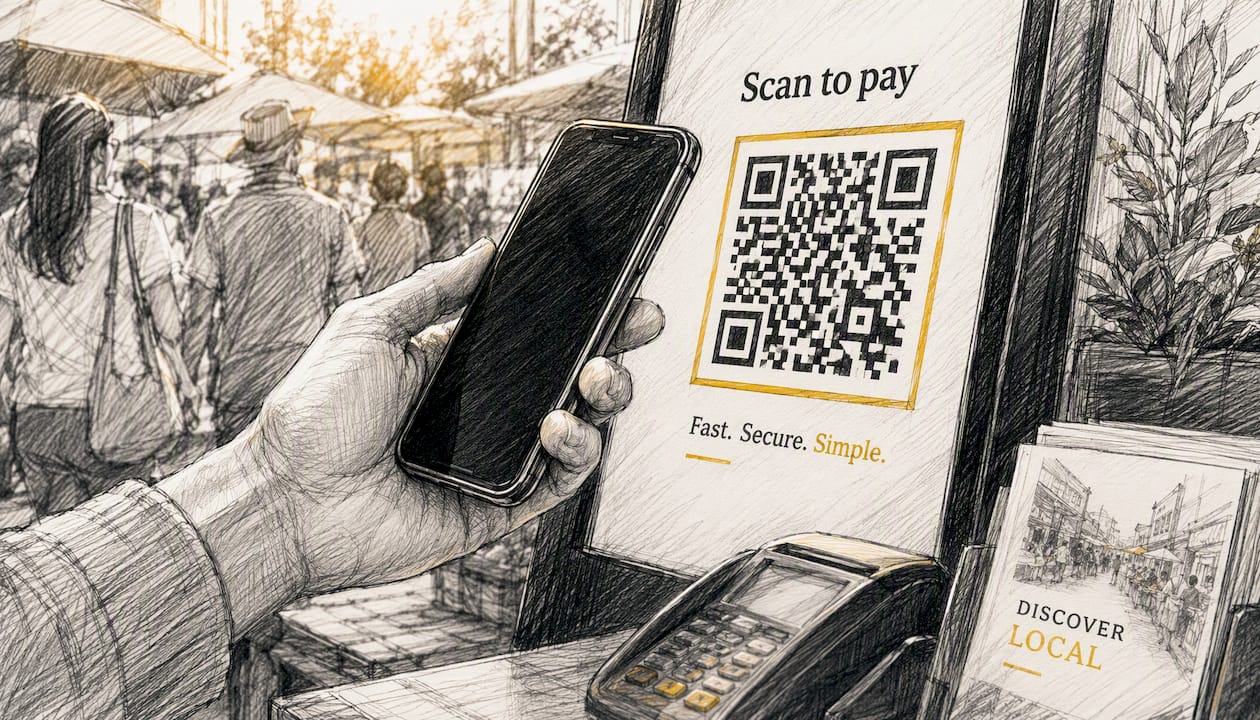
The user scans the code with their phone’s camera. Their mobile browser opens a page tied to a token. That token gets sent to the kiosk’s backend, which resolves the session, matches it to a record, and authenticates the user if that’s part of the flow. From there, the kiosk can trigger a peripheral action: printing a receipt, opening a gate, or updating attendance in a connected system. iClassPro’s check-in kiosk documentation describes exactly this pattern, including an Auto-Check-In On Scan setting that lets a single scan check a family or student in without extra taps.
Session lifecycle matters more than most teams expect at the planning stage. Tokens are usually ephemeral, meaning they expire after use or after a set window. Kiosks typically apply a session timeout and reset to idle after a period of inactivity, partly for security and partly so the next user isn’t accidentally logged into someone else’s session. REACH’s kiosk documentation shows how location metadata can determine whether a scan opens a sign-in panel or performs a direct sign-in, which is worth studying if your kiosks serve more than one purpose.
Pro Tip: Put a large, unambiguous visual cue next to the code, something like “Scan here with your phone camera” in bold text, rather than assuming users know a QR code invites a scan. Ambiguous instructions are one of the most common causes of abandoned kiosk sessions.
What are the main use cases for QR code kiosks?
Most deployments cluster around a handful of proven patterns, each solving a specific operational problem rather than QR codes as a novelty.
- Touchless check-in and registration at gyms, clinics, and events, where speed and hygiene both matter.
- Authenticated rollcall, used in schools and childcare settings to confirm exactly who is present, tying a scan to a specific identity rather than a generic tap.
- Ticket validation and queue management, where a scan confirms entry rights and can print a receipt or numbered ticket in the same motion. Integrated kiosks that pair a 2D barcode scanner with a thermal printer are built specifically for this.
- Scan-to-receive content or offers, where a kiosk scan triggers a personalised follow-up, a pattern explored in QRlytics’s look at personalised QR journeys.
- Contactless payments and receipt retrieval, reducing the need for staff to handle cash or cards at the point of sale.
Each of these trades a manual, staffed step for an automated one, which is where the real return sits: less staff time per transaction, fewer errors, and a data trail you can actually analyse afterwards.
What hardware and software do kiosks need for QR scanning?
Getting the read reliable matters more than any other technical decision you’ll make. A built-in camera works fine for low-traffic kiosks in good lighting, but it struggles in glare, low light, or when users hold their phone at an angle. Dedicated 2D scanners cost more upfront but read faster and more consistently, which is why kiosk hardware vendors position external scanners as the preferred option for high-throughput or mixed-lighting environments.
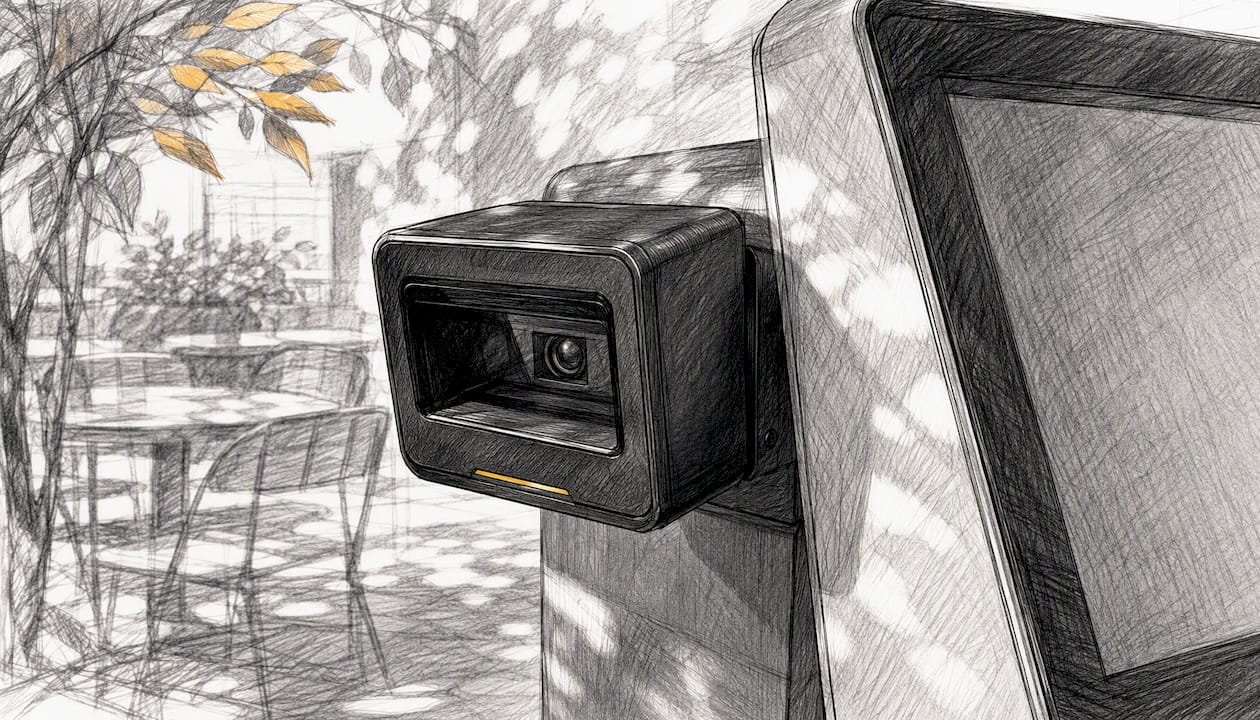
Your kiosk’s operating system shapes what’s possible too. iOS/iPadOS, Android, and Windows kiosks each handle camera permissions and browser redirects differently, and webcam driver support for USB scanners varies by device. Check this early, not after procurement.
Beyond the scanner itself, confirm:
- Network stability, since most QR flows depend on a live connection to resolve tokens; plan a fallback for degraded connectivity.
- Integration readiness with your CRM, POS, or appointment system. Verify the APIs or middleware exist to support auto check-in, not just manual lookups.
- Peripheral compatibility, particularly thermal printers, if your flow needs a physical ticket or receipt.
If you’re also handling in-person payment at the kiosk, it’s worth reviewing how contactless tip collection systems integrate with QR-based flows, since many service businesses now combine the two.
How do you implement kiosk QR codes step by step?
Treat this as a sequence, not a checklist you tick off in any order. Skipping steps, especially testing, is where most kiosk QR rollouts go wrong.
- Define the workflow. Map the exact user journey and note every system it touches: CRM, POS, session handling, peripheral triggers.
- Select your scanning method. Choose between a built-in camera and a dedicated 2D scanner based on your lighting and throughput needs, then procure and bench-test it with real QR images, not test patterns.
- Generate and manage your codes. Decide between static codes, which never change, and dynamic codes, which let you update the destination without reprinting anything.
- Design your tokens. Build one-time or session-based tokens for authentication rather than embedding user data directly in the code.
- Build the integrations. Set up the webhook or API connection for check-in, CRM updates, and any peripheral triggers such as a thermal printer.
- Define session rules. Set your timeout window, your inactivity reset behaviour, and your re-authentication logic.
- Test thoroughly. Run read-rate tests, edge cases like blurred images or double scans, mobile browser compatibility checks across common devices, and offline fallback scenarios. Advanced Kiosks’ scanning guidance is a useful reference for common failure points before you go live.
- Pilot before you scale. Launch at one low-traffic location first, train staff on the flow, set up your analytics dashboard, and build a feedback loop to adjust timeouts or on-screen copy based on real usage.
Pro Tip: Use dynamic QR codes rather than static ones wherever the destination might ever change. A static code printed on signage or a ticket becomes worthless the moment a URL moves; a dynamic code lets you update the link instantly and skip the reprint entirely.
What security and privacy measures do kiosk QR codes need?
Every QR-driven callback or validation page needs HTTPS, with proper certificate validation on both ends. This isn’t optional at a public kiosk, where an intercepted or spoofed request could expose someone else’s session.
Avoid embedding personal data directly in the QR code itself. Ephemeral tokens or one-time codes are the safer pattern, since the code becomes useless outside its narrow validation window even if someone captures the image. Layer on rate limiting and replay protection so a captured token can’t be reused, and keep session lifetimes short. Log events for audit purposes, but don’t store more personal data than the operation actually requires. Kiosk vendors increasingly build in scheduled QR refresh specifically to reduce this replay risk, rotating the displayed code on a timer rather than leaving one code live indefinitely.
Where kiosks collect any tracking or analytics data, GDPR-compliant handling and a clear privacy notice aren’t just good practice, they’re expected by users who’ve grown used to seeing them. QRlytics’s guide to GDPR-compliant QR codes covers the practical steps for marketers running scan campaigns.
Pro Tip: If any of your kiosks need to validate scans offline, sign your tokens with a cryptographic certificate rather than relying on a live server check. This lets the kiosk verify authenticity locally without exposing a validation endpoint to the open internet.
Why does managed QR analytics matter for kiosk deployments?
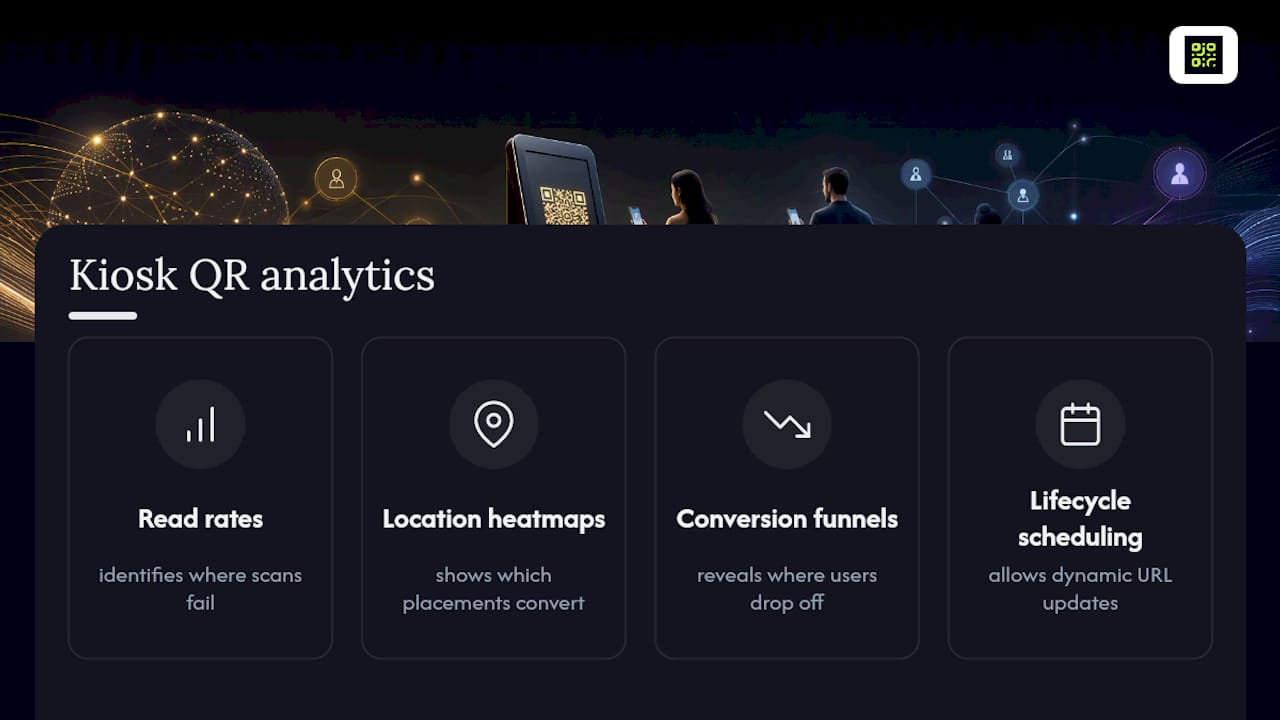
A one-off QR code generator gets you started, but kiosk deployments run for months or years, and destinations, promotions, and integrations change constantly. A managed platform should give you dynamic URL updates, real-time scan analytics, lifecycle scheduling, API access, and a genuine permanence guarantee so a code never quietly stops working.
Analytics turn a kiosk from a black box into something you can actually optimise. Read rates tell you where scanning is failing. Heatmaps of kiosk scans, tracked properly, show you which locations or placements convert and which don’t. Conversion funnels reveal where users drop off between scan and completed action.
Operationally, this avoids two expensive problems: reprinting signage because a static code broke, and losing campaign continuity when a destination changes mid-deployment. QRlytics builds specifically around permanence and lifecycle control for exactly this reason.
What should you do when kiosk QR codes stop working?
Most kiosk QR problems fall into a small set of repeatable fixes.
- Low read rate: Increase contrast between the code and its background, enlarge the code, improve ambient lighting, or switch to a dedicated 2D scanner if a camera keeps struggling.
- Session not resolving: Check your backend API endpoints, confirm CORS settings and HTTPS certificate validity, and verify the kiosk’s clock and timezone haven’t drifted out of sync with your server.
- Mobile browser won’t open: Confirm universal links and redirects are configured correctly, and test across the common device browsers your users actually carry, not just one reference device.
Keep a printed version of these three fixes near the kiosk for on-site staff. Most issues resolve in under five minutes once someone knows where to look.
A short view on getting kiosk QR codes right
Pilot before you scale, and measure while you do it. Analytics tell you what a launch checklist never will. Dynamic, permanent codes are the safeguard that keeps a kiosk deployment working long after launch day is forgotten.
Get a managed platform built for permanent, trackable kiosk codes
Static codes and free generators work for a quick test, but kiosk deployments run for years, not weeks, and that’s where permanence starts to matter more than price. QRlytics keeps every code created during an active subscription working indefinitely, even if billing lapses, so a kiosk sign or printed ticket never quietly goes dead because a free service switched something off on its end.
That reliability pairs with dynamic URL updates, meaning you can redirect a kiosk’s QR destination the moment a workflow, promotion, or integration changes, without reprinting a single sign. Real-time analytics and scan heatmaps then show you exactly where kiosk scans succeed and where they stall, so you’re optimising placement and copy with actual data rather than guesswork. Start with the free QR code generator to test a pilot kiosk flow, then move to dynamic QR codes once you’re ready to scale across locations.
Sources
- How Do QR Codes Work with the Check-In Kiosk?
- 2.05.01 Using QR Codes in your kiosks
- Barcode & QR Code Scanners for Tablet & Touchscreen …
- How to Scan a QR Code
- S3D QR Ticket Validator Kiosk | 58mm Thermal Printer & 2D Barcode Scanner POS
FAQ
How do you scan a QR code at a kiosk?
Open your phone’s camera or a QR scanning app, point it at the code displayed on screen or printed on your ticket, and hold steady until your browser opens automatically. Advanced Kiosks notes that camera position and hold distance are the two most common causes of a failed first attempt.
Can you get a free QR code for your business?
Yes, most QR platforms including QRlytics offer a free tier for generating codes with no credit card required, though free static codes typically lack the analytics and update flexibility a kiosk deployment needs long term.
How do you use a QR code on a USPS self-service kiosk?
USPS self-service kiosks generally use QR codes for label retrieval or tracking lookups rather than authentication, following the same scan-to-resolve pattern used across most public kiosks: scan, browser opens, backend resolves the request.
Where can you find a barcode scanner for a kiosk?
Kiosk hardware vendors sell dedicated 2D barcode and QR scanners designed specifically for tablet and touchscreen kiosks, and KioskGroup’s scanner range is a practical starting point for comparing options by mounting style and read range.
How long does a kiosk QR session stay active before it times out?
Session length varies by platform and use case, but most kiosk deployments apply a short timeout paired with an inactivity reset, often refreshing the displayed code on a schedule to reduce replay risk, as seen in FlowKiosk’s approach to scheduled QR refresh.