Scan me: how to read QR codes in 2026

TL;DR:
- Scanning a QR code allows instant access to embedded information using a camera or scanner tool. Dynamic QR codes enable updating content and tracking scans, making them ideal for marketing and campaigns. Ensuring high contrast, proper size, and error correction level improves scan success across diverse devices and environments.
Scanning a QR code is the process of capturing and decoding its encoded information using a camera or scanning tool, giving you instant access to URLs, contact details, event tickets, payment portals, and more. The “scan me” prompt you see on posters, packaging, and business cards refers to this Quick Response code standard, which stores data in a grid of black and white squares readable by any modern device. Qrlytics builds on this standard by offering dynamic, trackable QR codes that businesses can update and measure long after printing. Whether you are an individual curious about a restaurant menu or a marketer running a national campaign, understanding how scanning works puts you in control of the experience.
What do you need to scan a QR code?
Scanning a QR code requires very little. Most people already own everything they need.
Device requirements
- A smartphone with a rear-facing camera (iOS or Android, any model from the last six years)
- A laptop or desktop with a webcam, used alongside a browser-based QR code scanner
- A dedicated hardware scanner for high-volume retail or logistics environments
Software options
- Built-in camera apps on iPhone (iOS 11 and above) and most Android devices running Android 9 or later
- Browser-based tools that process images directly in your browser without uploading them to a server
- Dedicated mobile apps for offline scanning, which store scan history locally on your device
Before you scan
- Grant camera permission to your browser or app the first time you use it
- Make sure the code is well-lit and fills roughly 60–70% of your viewfinder
- Clean your camera lens if scans are failing repeatedly
Privacy matters when you scan. Leading offline scanner apps transmit zero data to external servers, processing everything locally. That matters when the QR code links to a sensitive document or a private URL. Web-based tools vary: some store scan results for around 24 hours before deleting them, which is acceptable for general use but worth knowing before you scan anything confidential.
Pro Tip: If you handle sensitive business documents, choose a scanning tool that explicitly states “local processing only.” The privacy difference between local and server-based tools is significant.

How to scan a QR code: step by step
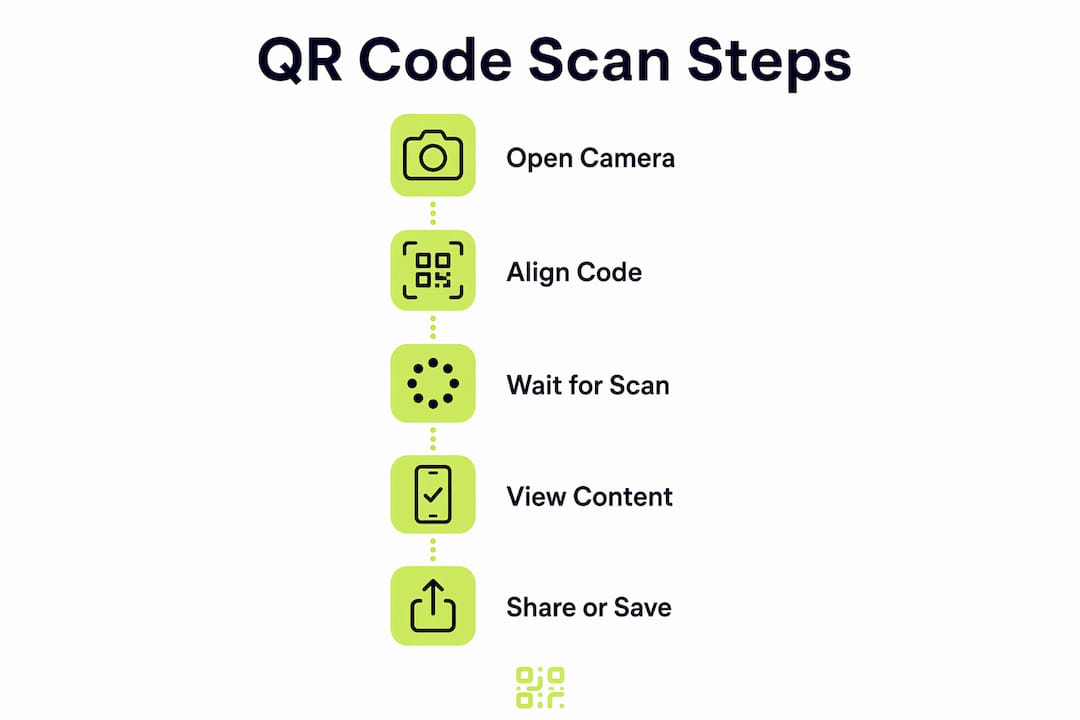
The method you use depends on your device and situation. Three approaches cover virtually every scenario.
Using your smartphone camera
- Open your default camera app. Do not open a separate app yet.
- Point the camera at the QR code, keeping it steady and centred.
- Wait one to two seconds. A notification or banner will appear at the top of the screen.
- Tap the notification to follow the link or view the decoded information.
- If nothing appears, move the camera slightly closer or further away to help the autofocus lock.
Built-in camera functionality and browser APIs can decode most standard QR codes without any additional app download. This dispels the common belief that a dedicated app is always necessary.
Using a browser-based scanner
- Open your preferred browser on any device.
- Navigate to a browser-based QR code scanning tool.
- Allow camera access when prompted, or choose the “upload image” option.
- Hold the code in front of your webcam, or upload a screenshot containing the code.
- The decoded result appears on screen within seconds.
Tools like Microapp process QR images entirely within your browser, never uploading the image to a server. This makes browser-based scanning a genuinely private option for most users.
Scanning from a saved image or document
- Save the image, screenshot, or PDF containing the QR code to your device.
- Open your scanning tool and select the “upload file” or “scan from image” option.
- Select the saved file.
- The tool decodes the QR code and displays the result.
QR scanners that support uploaded images handle PDFs, screenshots, and standard image formats, making it straightforward to decode QR codes embedded in digital documents without printing anything.
Pro Tip: When scanning from a screenshot, crop the image tightly around the QR code before uploading. Removing surrounding clutter helps the scanner locate and decode the code faster.
Why does my QR code not scan? Common problems and fixes
Scanning failures are almost always caused by one of four issues: poor contrast, physical damage, bad lighting, or device limitations.
Common causes and solutions
- Low contrast: A QR code printed in light grey on white will fail on most scanners. Accessibility experts recommend high contrast and adequate sizing to achieve near 100% scan success across diverse devices, including older smartphones.
- Damaged or dirty codes: A torn corner or smudged ink can break the code’s data matrix. QR codes include built-in error correction at four levels (L, M, Q, H). A code set to level H can tolerate up to 30% damage and still decode correctly.
- Inadequate lighting: Scanning in dim conditions causes autofocus to struggle. Move to a brighter area or use your phone’s torch to illuminate the code.
- Wrong distance or angle: Hold your camera 15–30 centimetres from the code and keep it parallel to the surface. Extreme angles distort the grid and cause decoding errors.
- Outdated software: Older operating systems may lack native QR scanning. Update your OS or use a browser-based tool as a workaround.
“Businesses need to consider diverse user devices and conditions to ensure QR codes are generated with sufficient size, contrast, and error correction for accessibility. A code that scans perfectly on a flagship device may fail entirely on a three-year-old budget phone.”
Device compatibility is a real issue for businesses deploying QR codes at scale. Generating codes with error correction level Q or H, and printing them at a minimum of 2.5 centimetres square, covers the widest possible range of devices and environments.
Best practices for “scan me” QR codes in marketing and events
A QR code that nobody scans delivers no value. Design, placement, and tracking determine whether your code works as a marketing tool or sits ignored on a wall.
Size, contrast, and placement
The minimum recommended print size is 2.5 centimetres square for codes scanned at arm’s length. For outdoor banners or exhibition stands, scale up proportionally. Always use a dark foreground on a light background. Avoid placing codes on reflective surfaces, curved materials, or busy patterned backgrounds.
Placement drives scan rates significantly. Codes at eye level on flat surfaces consistently outperform codes placed low on floors or high on ceilings. For events, position codes near queues or waiting areas where people have time to scan. Read more about boosting scan rates with placement and design strategies.
Dynamic codes and campaign tracking
Static QR codes encode a fixed URL that cannot be changed after printing. Dynamic QR codes redirect through a short URL that you can update at any time. Dynamic QR codes enable editable content and full scan analytics, which is the standard for any serious marketing campaign.
Analytics in marketing drives measurably better ROI when teams act on real data rather than assumptions. Scan analytics tell you which locations, times, and audiences engage most, letting you reallocate budget to what actually works.
Pro Tip: Always add a clear call to action near your QR code. “Scan for 10% off” outperforms a plain “scan me” prompt because it tells the user exactly what they will receive.
Comparing QR code strategies
| Strategy | Best for | Key benefit | Limitation |
|---|---|---|---|
| Static QR code | One-off print runs | No ongoing cost | URL cannot be changed |
| Dynamic QR code | Ongoing campaigns | Editable URL, full analytics | Requires a management platform |
| Branded QR code | Events and packaging | Builds recognition and trust | Needs careful contrast testing |
| High error-correction code | Outdoor or physical environments | Tolerates damage and dirt | Slightly larger file size |
For any campaign where you need to measure results or update the destination URL, a dynamic code managed through a platform like Qrlytics is the only practical choice. Learn how to generate effective QR codes that serve both branding and performance goals.
Key takeaways
Dynamic QR codes with analytics are the definitive standard for marketing, branding, and events because they combine editable destinations, real-time scan data, and broad device compatibility.
| Point | Details |
|---|---|
| No app required | Built-in smartphone cameras and browser APIs decode most QR codes without extra downloads. |
| Privacy starts with tool choice | Select scanning tools that process data locally to avoid unintentional data sharing. |
| Design determines scan success | High contrast, adequate size, and error correction level Q or H maximise accessibility across devices. |
| Dynamic codes outperform static | Dynamic QR codes let you update URLs and measure scan performance after printing. |
| Placement drives engagement | Eye-level placement on flat, well-lit surfaces consistently produces the highest scan rates. |
What I have learned from watching QR codes succeed and fail
The single biggest mistake I see businesses make is treating a QR code as a destination rather than a channel. They print a static code pointing to their homepage, then wonder why nobody scans it twice. A QR code is a data collection point as much as it is a link. If you are not tracking who scans it, when, and from where, you are operating blind.
The second pattern I notice is over-reliance on aesthetics at the expense of function. Branded QR codes with custom colours and embedded logos look appealing, but they fail at scale when the contrast ratio drops below the threshold older devices need. I have seen beautifully designed codes on premium packaging that a third of smartphones simply cannot read. Test on at least three different devices before you commit to a print run.
The privacy dimension is also underappreciated. Offline scanning apps with local-only processing give users genuine control over their data. For businesses asking customers to scan codes linked to loyalty programmes or personal accounts, recommending a privacy-respecting scanner builds trust rather than eroding it.
The future of QR scanning is frictionless. Smartphone cameras are now fast enough that most people do not even notice the decode happening. The opportunity for businesses is not in the scan itself but in what happens after it. Real-time analytics, personalised landing pages, and consistent QR code branding are where the competitive advantage sits in 2026.
— The
Qrlytics: create, manage, and track your QR codes
Qrlytics is built for businesses and individuals who need QR codes that work reliably and deliver measurable results. Every code created on an active Qrlytics subscription remains functional permanently, regardless of future billing changes. That guarantee matters enormously when codes are printed on packaging, signage, or event materials that cannot be reprinted cheaply.
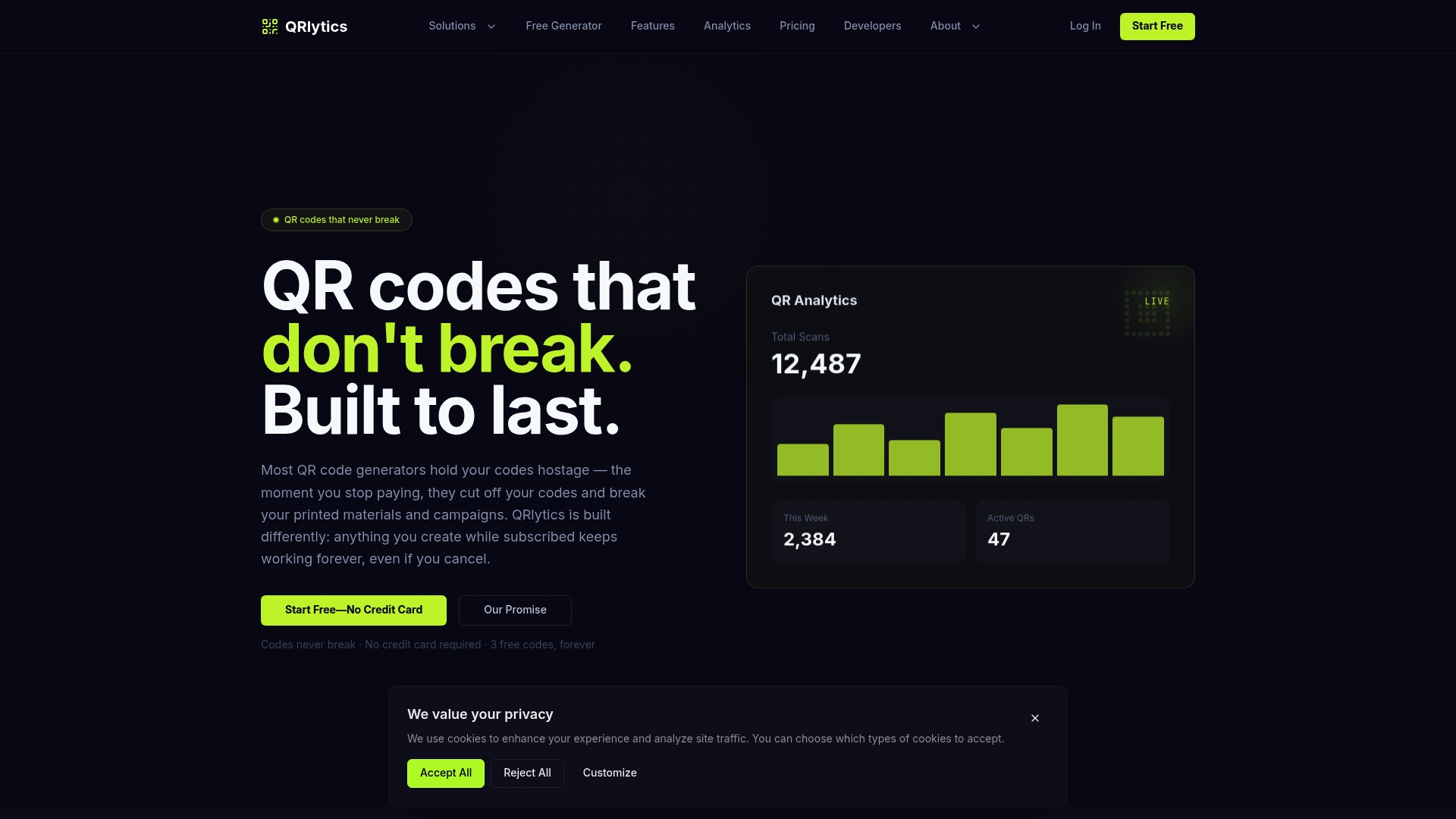
The free QR code generator requires no credit card and produces high-quality codes immediately. For campaigns that need editable URLs and real-time scan analytics, the dynamic QR code generator gives you full control over every scan. GDPR-compliant tracking, global heat maps, and branded code options are all included. Start with the free tool and upgrade only when your campaign demands it.
FAQ
Do I need an app to scan a QR code?
No. Built-in camera apps and browser APIs on modern smartphones decode most standard QR codes without any additional download. Open your camera, point it at the code, and tap the notification that appears.
How do I scan a QR code from a screenshot or image?
Upload the image to a browser-based scanning tool. Tools that support uploaded files handle PDFs, screenshots, and standard image formats, decoding the QR code without requiring a live camera feed.
Are online QR code scanners safe to use?
Safety depends on the tool. Some web-based scanners store results for around 24 hours before deleting them, while others process everything locally in your browser with no data upload. Choose a local-processing tool for sensitive content.
What makes a QR code easier to scan?
High contrast between the foreground and background, a minimum print size of 2.5 centimetres square, and error correction level Q or H all improve scan success rates across a wide range of devices and lighting conditions.
What is the difference between a static and a dynamic QR code?
A static QR code encodes a fixed URL that cannot be changed after creation. A dynamic QR code redirects through an editable short URL, allowing you to update the destination and track scan analytics without reprinting the code.