Salesforce QR Integration: 4 Paths From No Code to Mobile Scans

You can integrate QR codes with Salesforce using AppExchange packages, the BarcodeScanner API with Lightning Web Components, no-code formula and Flow generation, or an external QR API with webhooks. For the fastest working result, start with no-code generation plus a Flow. For heavy mobile scanning at scale, choose the BarcodeScanner API or a managed scanning component. Pick the matching how-to section below.
TL;DR:
- Admins can render QR images on record pages and emails, then use a Flow to generate and send them when records or campaign memberships change.
- The BarcodeScanner API works only in mobile containers, so desktop workflows need a manual lookup or another scanning component; test camera behavior on physical devices.
- For mobile scanning, restrict barcode types to QR, call dismiss() in a finally block, and use continuous mode for inventory rather than one record lookup.
- Use an external QR service when destinations may change or campaign analytics matter; API and webhook integration can update Salesforce leads, contacts, or capture metadata.
Table of Contents
- Which Salesforce QR code approach fits your team?
- How do you create QR codes in Salesforce without code?
- How do you add QR scanning to the Salesforce mobile app?
- Which workflows work best with Salesforce QR codes?
- What should admins check before rolling out QR scanning?
- Why we would start with no-code generation
- How can a managed QR platform handle dynamic redirects and analytics?
- FAQ
- Sources
Which Salesforce QR code approach fits your team?
Each route trades speed against control. Here is how they compare on deployment effort, technical cost, mobile experience and analytics:
- AppExchange packages: quick to install and friendly for admins. Managed packages can add QR generation and scanning without custom development.
- BarcodeScanner API with LWC: mobile scanning, including continuous scanning and integrated mobile flows. It needs developer time and testing inside a mobile container.
- No-code generation: a formula field or image component renders a QR for a record or URL. It can be a straightforward option for emails and print collateral.
- External QR API: the right choice when you need dynamic redirects, codes that keep working after the destination changes, and detailed analytics. It involves API integration and webhook handling.
If you only need a QR on a page or in an email this week, go no-code. If your team scans stock in a warehouse all day, plan for the API.
How do you create QR codes in Salesforce without code?
Admins can use this no-code approach. Follow these steps:
- Choose the record ID or target URL you want the QR to open.
- Choose a way to render a QR code for that value, such as a QR generation package or a custom component.
- Place the rendered image on the Lightning record page and in your email templates.
- Build a Flow that runs on record creation or when campaign membership changes, so the QR is generated and sent without manual work.
- Test with sample records. Scan each code on a phone and confirm it opens the expected record or URL.
Pro Tip: Encode a full URL rather than a bare record ID when the QR will be scanned outside the Salesforce app, so any phone camera can open it.
How do you add QR scanning to the Salesforce mobile app?
Developers building an LWC for the Salesforce mobile app follow a clear pattern. Import getBarcodeScanner, check that the scanner is available, then call scan(options) and handle the promise it returns.
- Pair every scan() call with dismiss() inside a finally block. The scanner interface stays active after a success or an error, so skipping this holds the camera and breaks the next scan.
- Limit
barcodeTypesto QR. The configurable barcode types reduce misreads in the field. - Choose single-scan mode for one record lookup and continuous mode for inventory runs.
- Prefer no code? Install an AppExchange scan component that offers a Flow template or Lightning component, then map scanned values into fields.
Pro Tip: Always test on a physical device. Simulated desktop sessions will not exercise the camera or the dismiss lifecycle.
Which workflows work best with Salesforce QR codes?
Match the workflow to the approach:
- Event check-in: generate a code per invite with the no-code method, then scan it to update the Campaign Member status. Our guide to QR codes for events and the attendance guide for planners cover the on-site side.
- Inventory and field service: use continuous scanning through the BarcodeScanner API or an AppExchange capture component, and batch updates to a custom object.
- Lead capture from print or out-of-home: use a dynamic QR that redirects through a tracking URL, then create or update the Lead or Contact via web-to-lead or an API webhook.
- Document capture: an external QR session opens a capture page on the phone, and a webhook writes the metadata and OCR results into Salesforce, as this Veryfi walkthrough shows.
What should admins check before rolling out QR scanning?
Run through this list before you release to the field:
- Enable mobile actions, and add the Search and Scan action only where it applies. It is limited to supported task types, so it will not appear on unsupported objects or layouts.
- Confirm object and field permissions on the profiles and permission sets that your Flows and LWCs update.
- Add capability checks to every LWC, because the scanner works only in mobile containers and fails on desktop.
- Test single and continuous scans, and verify dismiss() closes the scanner each time.
- Decide a fallback for scans that do not resolve, such as a manual search field.
The key constraint: the BarcodeScanner API runs only in mobile containers, so desktop users need a different entry point.
Why we would start with no-code generation
For most teams, the sensible first step is no-code generation plus a Flow. You get QR images in emails and pages quickly, and you learn what your users actually scan before spending developer hours. If scanning becomes central to the job, plan for BarcodeScanner API development or an AppExchange scanning component. If you need destinations you can change after printing, or real analytics, pair Salesforce with a dedicated QR platform over API and webhooks. Keep that decision separate from your first rollout.
— The
How can a managed QR platform handle dynamic redirects and analytics?
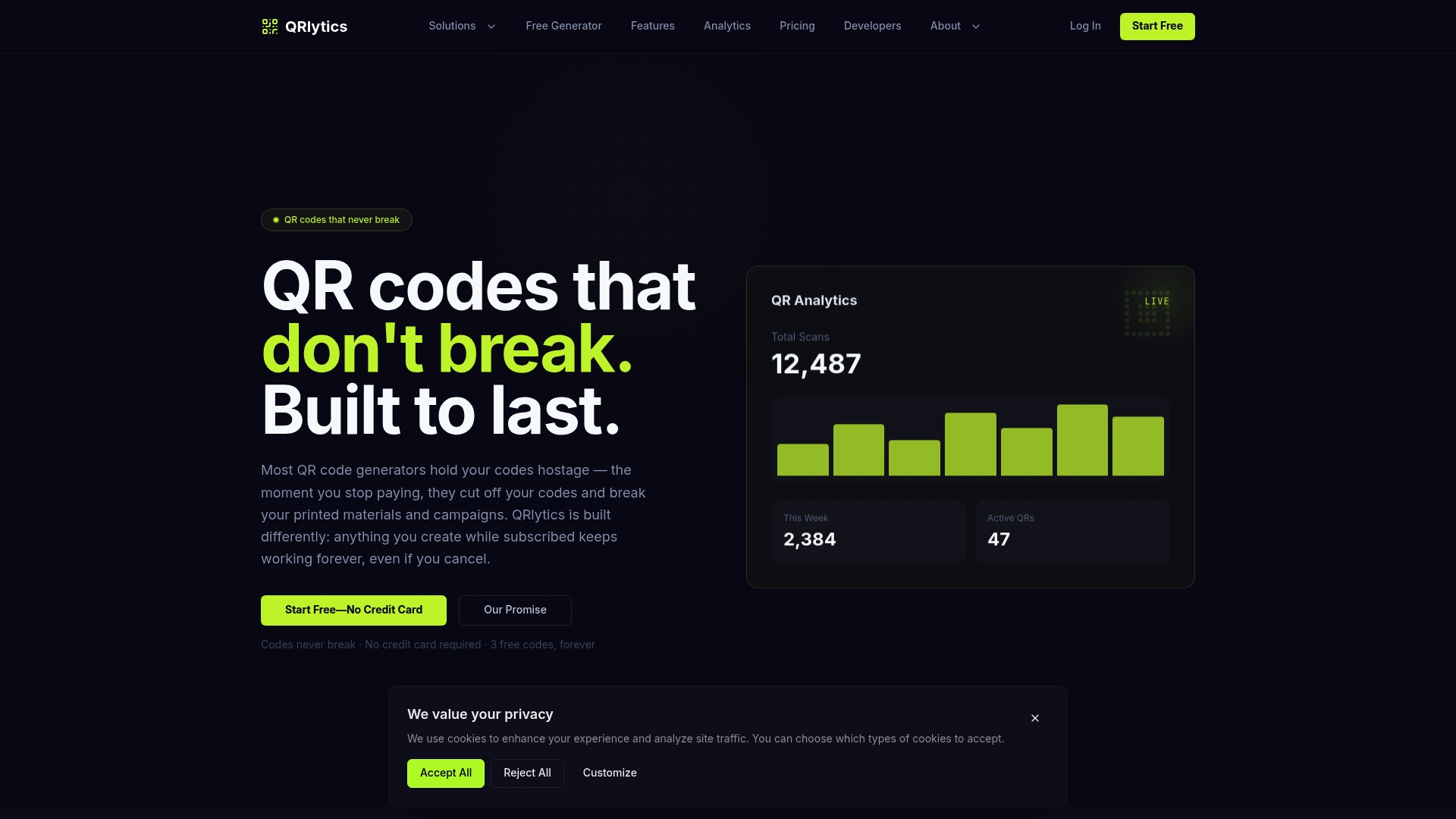
When printed codes need to remain useful after their destination changes, an external QR service may help manage redirects and analytics.
- Permanent QR links: codes created during an active subscription keep working.
- Editable destinations: change where a code points without reprinting, as we explain in our QR API integration post.
- Campaign analytics and heat maps: see scans by place and time, covered in our QR analytics guide.
- Use our API to create or manage QR codes.
Compare our Free and Pro plans on the pricing page, or start with our dynamic QR code generator. To measure the wider campaign impact, this marketing automation checklist is a useful companion.
FAQ
Is there a way to generate a QR code in Salesforce?
Yes. Admins can render a QR from a formula field or image component, and AppExchange packages add generation for standard and custom objects. For editable, trackable codes, an external QR platform connects through API.
How do I integrate Salesforce to Salesforce?
This is separate from QR work. For Salesforce-to-Salesforce sharing, check Salesforce’s guidance on configuring sharing between orgs. A QR code can carry a record URL, but whether it opens the intended record depends on access and configuration.
Is there a Salesforce app that scans QR codes?
Yes. The Salesforce mobile app supports the BarcodeScanner API for scanning from Lightning Web Components. You can also install an AppExchange scan component for a no-code route.
Why does scanning fail on desktop?
The BarcodeScanner API works only in mobile containers. Check availability in your LWC and offer a manual lookup field as a fallback.
Sources
Build against the primary documentation. The scan(options) reference and the scanning lifecycle guidance cover correct promise handling, and the Mobile and Offline Developer Guide explains availability checks. Salesforce’s developer blog walkthrough shows QR codes carrying record IDs that open the related record. Search AppExchange if you prefer an installed package.