QR Certificate Verification Process: How It Works

The QR certificate verification process has one job: send whoever scans the code to a page on the issuer’s own website, where the certificate’s details and status can be checked against the document in hand. The code is only the doorway. The proof is the page behind it, and it counts only if the address belongs to the issuer and the details match. For anyone who prints certificates, that also means the code must keep working for as long as the certificate does, and that is the part we build QRlytics around.
This guide covers both sides: how to verify a certificate you have been handed, and how to set up your own certificates so they can be verified for years.
TL;DR
- A QR code only stores an address, usually a URL. It proves nothing until you check the page it opens.
- Verify in four moves: scan, read the address, compare every detail with the paper, read the status.
- A valid result confirms the record exists. It does not confirm the person showing it is the named holder, so check photo ID where it matters.
- If the address is unfamiliar, or the code is a sticker on top of another code, go to the issuer’s official site yourself.
- If you issue certificates, point each code at a stable, secure page you control and keep it live for the certificate’s whole life.
Table of Contents
- What a QR code on a certificate does and does not prove
- The verification process, step by step
- When the details do not match or the page will not load
- Fake codes and lookalike pages
- How issuers make certificates easy to verify
- Doing this with QRlytics
- Our view: permanence is the foundation of verification
- FAQ
- Sources
What a QR code on a certificate does and does not prove
A QR code is a machine-readable way of writing down a short piece of text. On a certificate that text is normally a web address. Nothing in the pattern shows the text is true: a forged diploma can carry a perfectly scannable code that leads to a page built to look genuine. So treat the code as a convenience for reaching a page, never as evidence.
What gives the process value is what sits behind the code. When the address is on the issuer’s own domain, the page shows what the issuer has recorded: who received the certificate, for what, when, and whether it is still in good standing. Because the page reads from a live record, a certificate the issuer later withdraws can show as invalid even though the printed copy looks untouched. That is the main advantage over checking a static PDF.
It helps to be clear about the limits too:
- It does not identify the person. A valid page does not show that the person holding the paper is the person named on it. One issuer’s verification page states that a valid result means only that the record exists and is active, and it recommends matching photo ID and the displayed name for higher-assurance checks.
- It does not judge the issuer. A certificate from an organisation with no standing can still verify on that organisation’s own page. Verification tells you the record is real, not that the issuer is accredited for your purpose.
- It does not check the printed design. The scan looks up an ID. If someone has edited the name on a printed copy, only your comparison of the page with the paper will catch it.
A W3C-based concepts document for digital credentials splits checking into four parts: authenticity (a known issuer and a valid signature), integrity (nothing changed since signing), currency (expiry and revocation) and holder binding (the presenter is the rightful holder). A basic QR-to-web-page check covers currency and a little authenticity. Cryptographic signing adds integrity. Photo ID adds the holder.
The verification process, step by step
This is the routine for an employer, event organiser, venue manager or client who receives a certificate and wants to confirm it.
1. Find the code and any printed ID
Look for the QR code and a printed credential or certificate number near it. Keep the number: if the code is damaged or will not scan, you can type the ID into the issuer’s verification page instead. Some issuers print a code under the QR for exactly this reason.
2. Scan with the phone’s own camera
Use the built-in camera app rather than a third-party scanner. Duke University’s security guidance recommends the native camera scanner, and says to read the URL in the confirmation pop-up before you tap through. A well-run issuer will often also say which official app or page to use. Some programmes name one explicitly: for IATA training certificates issued after 1 September 2025, IATA says to scan the QR code with a smartphone, and an authentic certificate opens a green screen with the holder’s name, course title and completion details.
3. Read the address before the page loads
This is the step people skip, and it is the one that matters most. The address should be the issuer’s own domain, or the domain of a verification service the issuer has named. Look at the registered domain, which is the part just before the final “.com” or “.org”. A lookalike that differs by one letter is the usual trick, and a trusted name placed in a subdomain (for example, a well-known brand followed by a different site’s domain) does not make the site trustworthy.
If you cannot tell whether the address is right, do not rely on the code. Go to the issuer’s official website by typing it yourself or using a saved bookmark, and look for its verification page there. The American Heart Association, for example, tells employers that an eCard can be checked by scanning its QR code and should be validated against the issuing Training Center at heart.org/CPR/mycards. Where an official route exists, the typed address is the safe fallback.
4. Compare every detail with the document
Line up the page against the paper. Check each of these, letter for letter:
| Detail | What to look for |
|---|---|
| Recipient name | Same spelling, same order, no added or missing middle names |
| Certificate or course title | Matches the printed title exactly |
| Issuer | The organisation named on the page is the one on the paper |
| Issue date and, if shown, expiry date | Both agree with the printed dates |
| Certificate or credential ID | Matches the printed number, with no transposed digit |
| Status | Valid, expired, revoked or not found |
Check issue, completion and expiry dates separately. A genuine certificate can be genuine and still out of date.
5. Read the status, then decide
A valid status means the issuer’s record is current. Expired means the certificate was genuine but has passed its end date. Revoked or withdrawn means the issuer has taken it back, and you should not rely on it however good the paper looks. A result of “not found” may only mean the record has not been published yet, so rescan or retype the ID once before treating it as a failure, then contact the issuer.

6. Match the person where it matters
For anything with a consequence, such as hiring, site access, regulated work or age-restricted entry, finish by asking for photo ID and matching the name to the person. A 2023 study presented at USENIX Security that interviewed professionals who check vaccination certificates found that many verifiers merely looked at the certificate, skipped the scan, or never cross-checked the holder’s identity. The correct routine in that study is to scan, read the name from the scanned result rather than from the text printed beside the code, then match a legal photo ID.
When the details do not match or the page will not load
Start with the simple causes. Retype the ID slowly, since similar-looking characters are easy to confuse, and rescan in better light with the code flat and unfolded.
If the page loads but the details differ from the paper, trust the issuer’s page over the document, because the page shows what the issuer recorded. Then contact the issuer through its official website, not through any number or email printed on the suspect document, and ask it to confirm. If the issuer’s own page cannot find the ID after you have corrected typos, the document may not belong to that issuer at all.
Record what you did. For hiring or compliance purposes, a note with the date, the address you checked and the status shown is enough to show you followed a consistent process.
Fake codes and lookalike pages
Certificate checks are a natural target for QR phishing, often called quishing, because people expect to scan and tap. The USPS Postal Inspection Service warns that fake QR codes can send people to sites that collect names, addresses, banking details and passwords, and advises verifying the source by contacting the organisation through its official website. Security researchers at Palo Alto Networks’ Unit 42 report that attackers often avoid linking directly to the phishing domain, using redirects on legitimate sites to hide the real destination.
A few habits cover most of the risk:
- Treat unexpected codes as untrusted links. A code that arrives by email urging you to scan, or that asks you to sign in or pay, is not a verification.
- Look for stickers. A code stuck over another code on a printed certificate, poster or sign is a known trick.
- Check the lock, but do not stop there. An attacker can hold a valid HTTPS certificate for their own lookalike domain, so the padlock tells you the connection is encrypted, not that the site is the issuer’s.
- Use a known route. When in doubt, open the issuer’s official site from a bookmark and search the ID there.
This is also a brand issue. If your audience cannot tell your genuine codes from imitations, every code you print carries doubt. Building recognisable, consistent destinations helps, and how authenticity builds trust in a brand applies directly to the pages your codes open.
How issuers make certificates easy to verify
If you produce certificates, whether for training courses, event attendance, product authenticity, awards or printed publications, the quality of your verification page decides whether the process works for the people who scan.
Point every code at a page you control
Use your own domain, or a verification address you name on the certificate and on your website. Verifiers are told to check the domain, so give them a domain worth checking. Keep it on HTTPS: our guide to SSL for QR code landing pages covers what a secure destination needs.
Show the minimum a verifier needs
A good result page shows the status, the issuer name, the certificate title, the issue date, the expiry date if there is one, a unique ID and any revocation notice. Keep personal details to what is needed to confirm authenticity. Showing a full name without a date of birth or address is usually enough, and it limits what a stranger who finds the code can learn. Our piece on QR data privacy goes into the privacy side.
Keep the code alive as long as the certificate
A certificate may be checked three, five or ten years after it was printed. If the code stops resolving, the holder looks as if they have a fake. Printed stock cannot be corrected once it is out, so the destination has to stay reachable and, when your site changes, redirect to the new address. Our guidance on QR code best practices explains how to avoid costly reprints, and why QR code consistency matters covers keeping the same code and look across a campaign.
Add cryptographic signing for higher assurance
A plain link relies on the page. A stronger design signs the certificate data. An academic proposal in the International Journal of Computer Science, Engineering and Applications describes issuers holding a key pair and encrypting certificate details into the printed code, so that a scanning app can decrypt it and any mismatch with the printed certificate indicates forgery. That is the idea behind adding a cryptographic layer on top of a verification page: the page says what the record is, and the signature shows the data has not been changed.

Revoke, expire and update cleanly
The verification process only protects people if the issuer keeps the record current. Mark withdrawn certificates as revoked, show expiry dates, and let only authorised staff change a status. When a code is checked, a record of when and where helps you see unusual patterns, such as the same certificate being scanned in several countries in one day.
Doing this with QRlytics
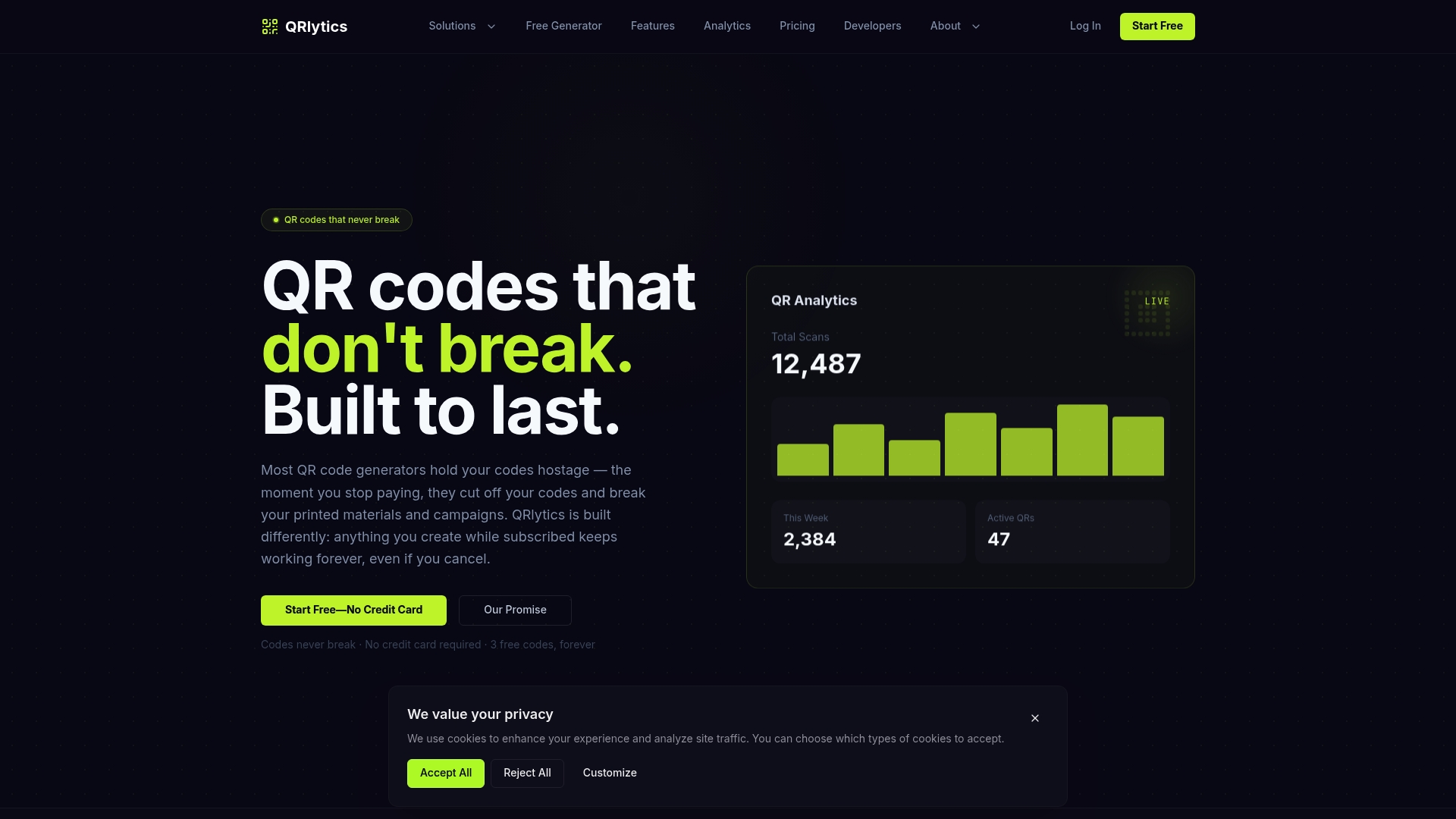
This is where we can take work off your hands. QRlytics is a QR code generation, management and analytics platform. Codes you create during an active subscription keep working permanently, even after cancellation or a billing problem, so a certificate printed today is not stranded by an account change. With dynamic QR codes you can update the destination URL without reprinting, which is what you need when a verification page moves to a new domain or platform.
Scan analytics show when and where your codes are opened, with global heat maps and CSV export, and tracking is GDPR-compliant. Lifecycle scheduling lets you control when a code is active, and cryptographic authentication certificates are part of the platform. Branding options let you put your look on the code so recipients learn to recognise it. Developers can use API access to create codes in bulk for each certificate.
The free plan needs no credit card, so you can set up a first certificate code and see the scan data before deciding on anything more. Details are on the pricing page, or you can start with the free QR code generator.
If your certificates are part of a wider campaign, such as event passes, awards or printed publications, our guide to unique QR landing pages per campaign shows how to give each one its own destination and tracking.
Our view: permanence is the foundation of verification
Most advice about QR certificate verification is aimed at the person scanning. That matters, but verification depends first on something the issuer controls: whether the code still goes where it was meant to go.
We built QRlytics on a simple promise. Codes created during an active subscription keep working forever, whatever happens to billing. Many free generators deactivate codes when a plan lapses, and for a certificate that is the worst possible failure. A genuine holder scans their own certificate, sees an error, and the certificate looks forged.
Our second principle is control. Dynamic URLs let you correct or move a verification page without touching the printed piece, and scan analytics let you see how the certificate is actually being used. Our third is trust: a branded code, a secure destination you own and a clear privacy stance help people tell the real thing from a sticker pasted over it.
If you print something people will check years later, treat the code as part of the product, not as decoration.
The
FAQ
Does a valid QR scan prove a certificate is genuine?
It proves the issuer’s record exists and is in good standing, provided the page is on the issuer’s real domain. It does not prove the person presenting the certificate is the named holder, or that the printed copy has not been altered. Compare every detail with the paper and, where it matters, check photo ID.
What should I do if the QR code will not scan?
Try better light and a flat, unfolded surface, then use the printed certificate ID on the issuer’s official verification page. If there is no ID, contact the issuer through its official website. Do not use contact details printed only on the suspect document.
How can I tell if a verification link is fake?
Read the registered domain before the page loads and compare it with the issuer’s known site. Be wary of one-letter differences, trusted names used as subdomains of another site, and codes stuck over other codes. If anything feels off, go to the issuer’s official site yourself.
What should a certificate verification page show?
At minimum: status, issuer name, certificate title, unique ID, issue date and expiry date where relevant. Add any revocation notice. Keep personal details to what is needed, since the page is public to anyone with the code.
Can I change where a printed certificate’s QR code points?
Yes, if it was created as a dynamic code. The printed code stays the same and you update the destination URL, so you can move or fix a verification page without reprinting. With QRlytics, codes created during an active subscription keep working permanently.
Sources
- Verify a certificate from its QR code: what to check
- Verify a credential, EduByte
- QR Code Security Guide, Duke University
- IATA: Validate IATA Training Certificate
- American Heart Association: eCard security
- Investigating Verification Behavior and Perceptions of Visual Digital Certificates, USENIX Security 2023
- USPS: If you don’t know about quishing, read this
- Unit 42: Evolution of Sophisticated Phishing Tactics, the QR Code
- Preventing Forged and Fabricated Academic Credentials, IJCSEA