Keep Menus Updatable Without Reprinting: Menu QR Design for Restaurants

Build your QR menu around a hosted, mobile-optimised page behind a dynamic code, not a static link to a PDF. That single choice lets you fix a typo, update a price or swap a special without reprinting a single table card. Below, we walk through the design checklist, the accessibility checks and the security habits that turn a QR code from a gimmick into a dependable part of service.
TL;DR:
- Dynamic QR codes allow instant content updates without reprinting menus, saving time and money as prices and specials change.
- Testing scanability at actual table lighting and distance reduces failure rates, with clear borders and proper placement key to reliable scanning.
- Accessibility checks recommend large tap targets and high contrast icons to accommodate guests with reduced dexterity or visual impairments.
- Securing QR codes with HTTPS, branded domains, and regular code inspections builds guest trust and prevents fraud from overlay attacks.
- Using QRlytics enables real-time analytics, permanent codes, and easy updates, supporting long-term, flexible menu management strategies.
Table of Contents
- What a QR menu is and why hospitality venues adopt them
- Step-by-step: prepare your menu content, build the QR and publish
- Design rules for readable, brandable menu pages and printed artefacts
- Accessibility and touch targets: WCAG-aligned checks to run
- Security and trust: practical steps to prevent QR-based fraud and build guest confidence
- Optimise performance and conversions: speed, analytics and upsell placements
- Common pitfalls and mistakes to avoid in QR menu design
- Operator perspective: real-world pitfalls and a short day-one checklist
- How QRlytics supports a permanent, updatable menu
- FAQ
- Sources
What a QR menu is and why hospitality venues adopt them
A QR menu is simply a menu your guests reach by scanning a code with their phone camera, rather than picking up a laminated card. The code itself can point to two very different things: a static link, baked permanently into the code and impossible to change once printed, or a dynamic link, where the code stays fixed but the destination behind it can be updated at any time. For a menu that changes with the seasons, dynamic is the only version that saves you money on reprints.
Hospitality venues use QR menus in several ways:
- Table menus that replace or supplement printed cards in the dining room.
- Room service menus in hotels, linked from a card on the nightstand or desk.
- Takeaway and collection menus posted at the counter or in the window.
- Specials boards that change daily without needing a new printed insert.
Adoption is already broad, though not uniform. a majority of full-service restaurant customers say they’d open a menu via QR code, though fewer are comfortable going further to order or pay through their phone. That gap matters for how you design the experience: treat the menu view as the easy win and build ordering or payment in only if your guests are ready for it.
A PDF menu can still be fine for a simple, rarely-changing takeaway list. Once you’re running specials, seasonal pricing or multiple locations, a hosted page behind a dynamic code earns its keep fast.
Step-by-step: prepare your menu content, build the QR and publish
Getting from paper menu to working QR code is a short process if you follow it in order.
- Prepare mobile-first content. Write short, scannable descriptions, list modifiers and add-ons clearly, flag allergens next to each dish, and format prices consistently (one decimal style, aligned right).
- Choose your link strategy. A static PDF link is quick to set up and needs no hosting, but every price change means a new code and new print run. A hosted mobile page behind a dynamic QR code costs a little more setup time upfront but lets you edit content indefinitely without touching the printed artefact.
- Generate a high-resolution QR code with your branding built in, sized for print rather than stretched from a small web export, using a dynamic QR code generator that keeps the destination editable.
- Choose durable print materials. Laminated tent cards or tamper-evident stickers hold up far better under daily handling than plain paper.
- Test before you deploy. Scan on both iOS and Android, on wifi and mobile data, from the distance a seated guest would actually hold their phone, and check the code still scans after lamination.
- Deploy with a plan. Place the code where light doesn’t glare off it, brief staff on what the menu should look like so they can spot a tampered code, and set a recurring date to review content and analytics.
Pro Tip: Run your scan test at the actual table height and lighting in the dining room, not at your desk; glare and distance change everything.
For the day-to-day mechanics of running ordering through table codes, our guide to QR codes in table ordering covers the operational detail in full.
Design rules for readable, brandable menu pages and printed artefacts
A menu page has one job: let a hungry guest find a dish, check the price and decide, in seconds, on a small screen. Everything else is secondary.
- Use a single column layout. Side-by-side columns force horizontal scrolling or pinch-zooming on a phone, and guests simply give up.
- Pick a legible font size, generally 16px or larger for body text, with a clear type hierarchy separating section headers, dish names and descriptions.
- Apply your logo, colours and imagery sparingly. A header logo and a consistent accent colour say more about your brand than a busy background photo sitting behind the text and fighting for attention.
- Order sections the way guests think: starters, mains, sides, desserts, drinks, with modifiers and prices sitting directly beside each dish rather than in a separate key.
- On the printed card itself, keep a quiet border and clear space around the QR code. A code crammed next to text or competing graphics scans worse, not better.
- Add a short, direct call to action beside the code, such as “Scan for menu”, rather than assuming guests will know what it’s for.
Pro Tip: Keep at least one letter’s width of clear space on all four sides of the printed QR code; cramped borders are one of the most common causes of failed scans.
For print and placement ideas that extend beyond the page itself, restaurant marketing design guidance covers broader in-venue material choices worth matching to your QR artefacts.
Accessibility and touch targets: WCAG-aligned checks to run
A menu that only works for guests with perfect eyesight and steady hands isn’t finished. Two checks matter most.
Tap target size. Buttons and links on your menu page, like “add to order” or category filters, should be large enough to hit reliably. WCAG guidance recommends tappable targets of at least 44 by 44 CSS pixels, a size chosen specifically to help guests with reduced dexterity or those using the menu one-handed while holding a drink or a child.
Contrast on icons and non-text elements. Allergen icons, filter toggles and buttons need enough contrast against their background to be seen at a glance, not just read by someone who already knows what to look for, as non-text contrast guidance sets out.
Build in fallbacks too:
- Keep a small stock of printed menus available on request for guests who can’t or don’t want to scan.
- Brief staff to offer help reading the menu aloud or navigating the page when asked.
- Make sure the link itself, not just the code, works when typed or tapped from a text message.
A simple manual test, two staff members scanning with different phones and trying each button, catches most issues before a guest does.
Security and trust: practical steps to prevent QR-based fraud and build guest confidence
QR codes carry a trust problem that printed menus never had: a guest can’t tell at a glance whether the code is yours. The FTC warns that scammers sometimes stick a fraudulent QR code directly over a legitimate one, redirecting guests to fake payment pages or phishing sites.
Build a few habits into daily service:
- Use HTTPS and a branded short domain so the landing page URL clearly matches your restaurant name.
- Check printed codes for overlays or stickers as part of opening duties, the same way you’d check a float or a fridge temperature.
- Encourage guests to glance at the destination URL and confirm it shows your restaurant’s name before entering any details.
- Never distribute your menu link through unsolicited SMS or email; guests should only ever get it by scanning the physical code or visiting your own site.
If you suspect a code has been tampered with, the FTC’s guidance for anyone who scanned a malicious code and entered details is to change passwords and review account activity straight away. Our guide to touchless access and tamper resistance covers placement choices that make overlay attacks harder to pull off.
Optimise performance and conversions: speed, analytics and upsell placements
A menu that loads slowly loses guests before they’ve seen a single dish. A few technical checks make the biggest difference:
- Compress images and load critical styling first so the page renders fast on patchy restaurant wifi.
- Measure first paint and time-to-interactive on a real phone, not just a desktop browser, since mobile networks behave differently table to table.
- Shorten the path from scan to order or payment: every extra tap between landing page and checkout costs you conversions.
- Place upsells where guests are already deciding, such as a suggested side beside a main course, rather than as a separate pop-up.
- Track scans, bounce rate and which dishes get the most views, then adjust layout and specials based on what the data actually shows.
Pro Tip: A persistent “add a drink” banner near the bottom of the menu page tends to outperform a one-off pop-up, because it stays visible without interrupting browsing.
Our breakdown of upsell tactics for QR menus goes deeper into merchandising placement that holds up across different menu styles.
Common pitfalls and mistakes to avoid in QR menu design
Most QR menu problems come from the same handful of mistakes, repeated across venues.
Linking straight to a PDF export from your point-of-sale system. It looks fine on a laptop and is nearly unreadable on a phone, forcing guests to pinch and zoom through a document never designed for a small screen.
Printing a code too small or too close to other artefacts. A code squeezed onto the corner of a drinks coaster, with no border and no context, fails to scan more often than it succeeds.
Treating the QR code as a one-time setup task. Menus change, prices change, and a code that still points to last season’s PDF erodes trust fast, especially once a guest spots a dish that no longer exists.
Skipping the lighting and distance test. A code that scans perfectly under bright office light can fail completely under dim evening ambience or from across a tall table.
Forgetting a fallback for guests who can’t or won’t scan. Not every guest has a charged phone, a steady signal or a device that reads codes smoothly, and a venue with no printed backup risks frustrating exactly the guests it should be welcoming.
Overloading the landing page with branding at the expense of readability. A striking header image is wasted if the dish list beneath it is cramped, low-contrast or buried below the fold.
Each of these is fixable with the checklist above, run once before launch and again every time the menu changes.

Operator perspective: real-world pitfalls and a short day-one checklist
The biggest rollout mistake isn’t poor design, it’s treating launch day as the finish line rather than the start of a maintenance habit. The second is skipping a proper scan test across devices and lighting, and the third is assuming guests will tolerate a slow page because the alternative is a laminated card. On day one, prioritise testing, a short staff briefing on spotting tampered codes, and a baseline read of your analytics so you know what normal looks like.
— The
How QRlytics supports a permanent, updatable menu
We built QRlytics around the problem this guide keeps circling back to: a code that stops working the moment you miss a renewal, or the moment a price changes and you’ve already printed two hundred table cards. Every code you create on an active subscription keeps working permanently, even if billing lapses later, so your printed menu artefacts never go dead on you.
- Update the destination page any time, instantly, without touching the printed code.
- See real-time scan analytics, including where and when guests are scanning.
- Apply your own branding to the code itself, consistent with the design rules above.
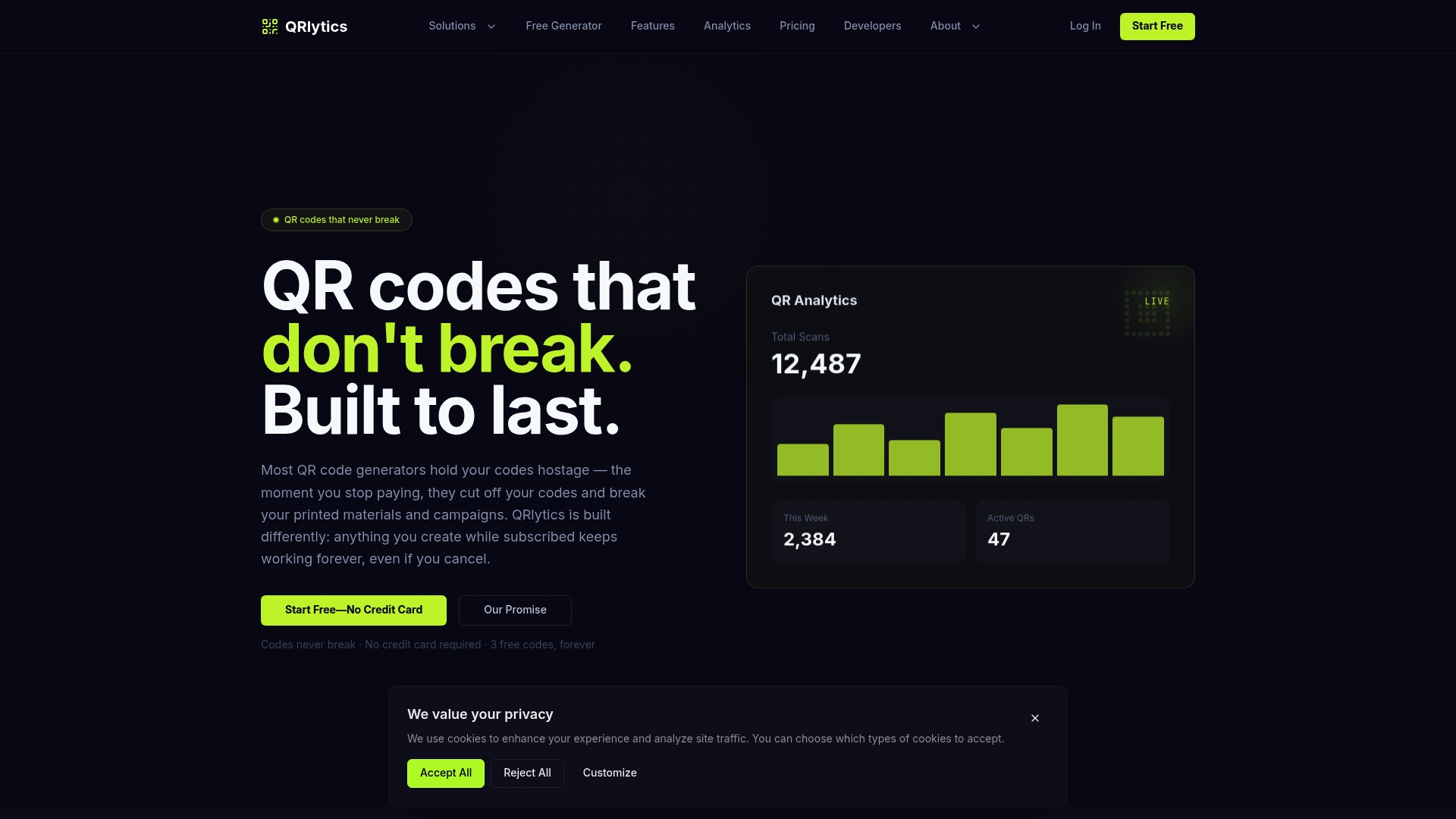
You can start on the Free plan with no credit card, or compare it against the Pro tier on our pricing page to see what unlimited codes and advanced analytics add for a growing menu rollout.
FAQ
Can I make a QR code for a menu?
Yes, you can generate a QR code that links to a hosted menu page or a PDF using a free QR code generator. For a menu you expect to update, a dynamic code keeps the printed artefact usable indefinitely.
How can I convert my menu to a QR code?
Build or upload a mobile-friendly version of your menu, host it at a stable link, then generate a QR code pointing to that address. Using a dynamic link means you can change the menu content later without reprinting the code itself.
How do I scan a QR code for a menu?
Open your phone’s camera app and point it at the code; most modern iOS and Android devices recognise a QR code automatically and show a link to tap. No separate scanning app is needed on recent phones.
Where can I find a free QR code menu generator for restaurants?
Several platforms offer free static QR code generation, including our own free QR code generator, which needs no credit card to start. A free static code works well for menus that rarely change, while a dynamic code suits menus you plan to update regularly.
Sources
- See a QR code parked somewhere? Don’t scan it…yet! | Consumer Advice
- Understanding Success Criterion 2.5.5: Target Size (Enhanced) | WAI | W3C
- Technology landscape report | National Restaurant Association (2024)