QR generator Google: a practical guide for small businesses
TL;DR:
- Google’s ecosystem offers various QR code generation tools, from Chrome’s quick URL generator to bulk options like AnyMerge. These tools suit different needs, such as single codes, form sharing, or large campaigns, with free options available for small businesses. To ensure long-term usability, static QR codes from these tools are reliable, while dynamic codes require choosing providers committed to permanence.
A QR generator Google tool is any QR code creation method that works within Google’s ecosystem, whether through Chrome’s built-in feature, Google Workspace add-ons, or browser-based generators that pair naturally with Google Sheets and Drive. For individuals and small business owners, these tools offer a fast, low-cost route to creating QR codes for product labels, event promotions, and marketing campaigns without specialist software. The key distinction worth knowing early: “QR generator Google” is a descriptive phrase, not an official Google product. The recognised industry term is QR code generator, and the Google ecosystem hosts several of them. Tools like AnyMerge, Go Tools, and Xerobit each serve different needs, from bulk generation to privacy-first single-code creation.
Which Google tools support QR code generation?
Google does not offer one single, branded QR code tool. Instead, it provides several entry points depending on your workflow and volume.
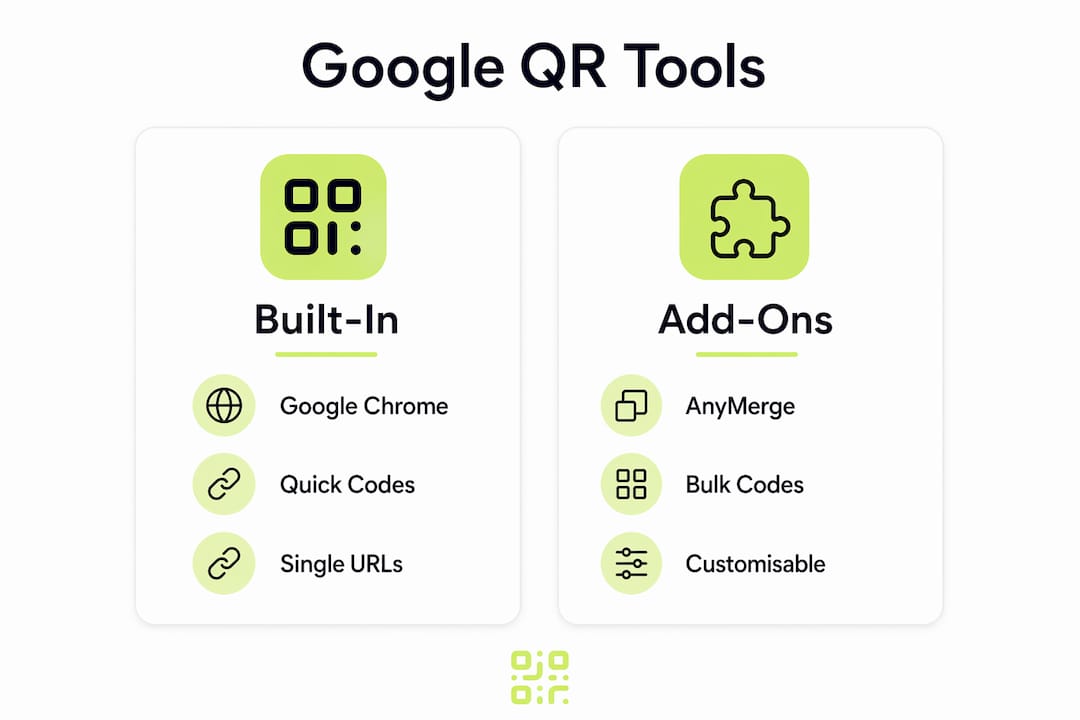
Google Chrome’s built-in generator is the simplest option. Google Chrome converts any open page or URL into a scannable QR code instantly, with no add-ons required. Right-click on any page, select “Create QR Code,” and download the result. This works well for one-off codes, such as sharing a booking page at an event or linking a physical flyer to a landing page.

Google Workspace add-ons serve higher-volume needs. The QR code for Google Forms add-on generates and customises codes that link directly to your forms, with options for logo and colour customisation on the premium tier, plus email integration for sharing. If you collect RSVPs, feedback, or registrations via Google Forms, this add-on removes several manual steps.
AnyMerge QR Code Generator is the most capable option for bulk work. It connects directly to Google Sheets and generates hundreds of codes at once, saving them as PNG files to Google Drive or merging them into Google Docs for print-ready layouts.
| Tool | Best for | Volume | Cost |
|---|---|---|---|
| Google Chrome built-in | Quick single codes from URLs | One at a time | Free |
| QR code for Google Forms | Form sharing and event sign-ups | Low to medium | Free/Premium |
| AnyMerge QR Code Generator | Bulk campaigns, product labels, ID badges | High | Free tier available |
| Go Tools / Xerobit | Custom codes with privacy protection | Low to medium | Free |
Pro Tip: If you are already working in Google Sheets with a list of product URLs or event links, install AnyMerge before you do anything else. It will save you hours compared to generating codes one by one.
How to create custom QR codes using free online generators
Free browser-based generators like Go Tools and Xerobit complement Google tools well, particularly when you need more customisation than Chrome’s built-in feature offers. Both tools run entirely in-browser with no data uploads, which matters when your QR code encodes sensitive information such as a Wi-Fi password or a personal vCard.
Follow these steps to create a custom QR code using either tool:
- Open Go Tools or Xerobit in your browser.
- Select your data type: URL, Wi-Fi credentials, vCard, plain text, or email.
- Enter your content in the input field.
- Choose your customisation options (see below).
- Download your code as SVG for print use or PNG for digital use.
- Test the code with at least two different devices before publishing.
Customisation options available on both platforms include:
- Logo overlay: Upload your brand logo to sit at the centre of the code.
- Colour choices: Change the foreground and background colours to match your brand palette.
- Error correction level: Higher levels (Q or H) allow more of the code to be obscured while still scanning correctly. Use level H if you are placing a logo over the code.
- Size and quiet zone: Set the output dimensions and the white border around the code, which scanners need to read the code reliably.
Pro Tip: Before downloading, check for watermarks and whether the tool requires an account. Genuinely free generators state clearly that processing happens client-side and do not ask you to sign up or pay before downloading.
Downloading in SVG format is the better choice for anything that will be printed. SVG files scale infinitely without pixelation, so your code remains sharp whether it appears on a business card or a banner. PNG files are fine for digital use, such as email footers or website pages, but can blur when resized for large-format print.
How to bulk generate QR codes with Google Sheets and AnyMerge
For campaigns involving multiple products, event tickets, or membership cards, generating codes one at a time is impractical. AnyMerge solves this by treating your Google Sheets data as the source for automated code creation. The add-on also supports advanced templates for ID badges, vouchers, and product labels, making it genuinely useful for small business operations.
Here is how to set it up:
- Prepare your Google Sheet. Create one column for the data each QR code should encode, such as product URLs, unique ticket IDs, or customer profile links. Add a second column for any label you want printed beneath each code.
- Install AnyMerge. Go to Google Workspace Marketplace, search for AnyMerge QR Code Generator, and install it. It will appear under Extensions in your Sheet.
- Open the add-on and configure your template. Select which column contains your QR data, choose your output format (PNG to Drive or merged into a Google Doc), and set your code size.
- Run the generation. AnyMerge processes each row and creates a corresponding QR code. For a campaign with 200 product SKUs, this takes minutes rather than hours.
- Review and organise. Check a sample of codes by scanning them before printing. Organise your Drive folder by campaign name and date for easy retrieval later.
| Step | Action | Output |
|---|---|---|
| Data preparation | List URLs or IDs in Google Sheets | Clean, structured data |
| Template setup | Configure AnyMerge with column mapping | Ready-to-run template |
| Code generation | Run AnyMerge across all rows | PNG files saved to Drive |
| Quality check | Scan a sample on two devices | Confirmed working codes |
| Organisation | Label Drive folder by campaign | Retrievable archive |
Pro Tip: Use a URL shortener or a dynamic QR code for each destination link before feeding it into AnyMerge. This gives you the ability to update the destination later without reprinting your materials.
Using Google Workspace add-ons for QR code generation keeps your campaign workflow inside tools you already use, which reduces errors and speeds up production.
Common issues and best practices for QR code creation
Even well-designed QR codes fail in the field if certain fundamentals are ignored. The most common problems are preventable with a few straightforward checks.
- Minimum print size: Print QR codes at no smaller than 2 cm × 2 cm. Smaller codes are difficult for standard smartphone cameras to read, particularly in low light.
- Contrast: Use a dark foreground on a light background. Reversed colours (light on dark) often fail on older devices. Avoid placing codes over busy photographic backgrounds.
- Quiet zone: Maintain a clear white border of at least four modules (the small squares that make up the code) around the entire code. Cutting into this zone is one of the most common causes of scan failure.
- Format for the job: Use SVG for print, PNG for screens. For professional print runs, SVG maintains scan reliability at any size, whereas raster PNGs can blur and cause failed scans if resized improperly.
- Privacy check: If your code encodes sensitive data, use a client-side generator and verify no network requests occur during generation by opening your browser’s DevTools network tab. This confirms your data never leaves your device.
For small businesses running ongoing campaigns, static QR codes present a real risk. If the destination URL changes or the page moves, the code becomes useless and any printed materials are wasted. Dynamic QR codes solve this by redirecting through a short URL that you can update at any time. This is particularly relevant for restaurant menus, event landing pages, and seasonal promotions. You can read more about managing this in Qrlytics’ guide to QR code tracking for marketers.
A QR code printed on 500 product labels is only as good as the URL it points to. Build in the ability to update that destination before you go to print, not after.
Key takeaways
Choosing the right QR code tool depends on your volume, privacy requirements, and whether you need codes that can be updated after printing.
| Point | Details |
|---|---|
| Match tool to volume | Use Chrome’s built-in generator for single codes and AnyMerge for bulk campaigns from Google Sheets. |
| Prioritise SVG for print | SVG files scale without pixelation, keeping codes scannable on product labels and large-format prints. |
| Verify client-side processing | Use Go Tools or Xerobit for sensitive data and confirm no network requests occur during generation. |
| Use dynamic codes for campaigns | Dynamic QR codes let you update the destination URL without reprinting materials. |
| Test before publishing | Scan every code on at least two devices before committing to print or distribution. |
Why the “free” question matters more than most people realise
The conversation around QR generators tends to focus on features: logos, colours, bulk output. What gets less attention is what happens to your codes six months after you create them. I have seen small business owners invest in printed menus, event banners, and product packaging, only to find their codes stop working because the free service they used deactivated them after a billing issue or a plan change. That is not a hypothetical. It is a documented pattern with several popular free QR platforms.
The Google Workspace tools covered here, Chrome’s built-in generator, AnyMerge, and the Google Forms add-on, do not have this problem because they generate static codes or save files directly to your Drive. The code is yours once it is created. The same is true of client-side generators like Go Tools and Xerobit: the code is a file on your device, not a hosted redirect that depends on a third party staying in business.
Where things get complicated is with dynamic QR codes, which require a redirect service to function. For those, the reliability of the platform hosting the redirect is everything. I would always recommend choosing a provider that explicitly guarantees code permanence, rather than assuming a free tier will remain available indefinitely. For anyone wanting to understand the full picture before committing to a tool, the Qrlytics guide on generating QR codes professionally covers this in detail.
— The
Take your QR codes further with Qrlytics
Google tools are a solid starting point for QR code creation, but they do not offer scan analytics, dynamic URL editing, or GDPR-compliant tracking. Qrlytics fills that gap.
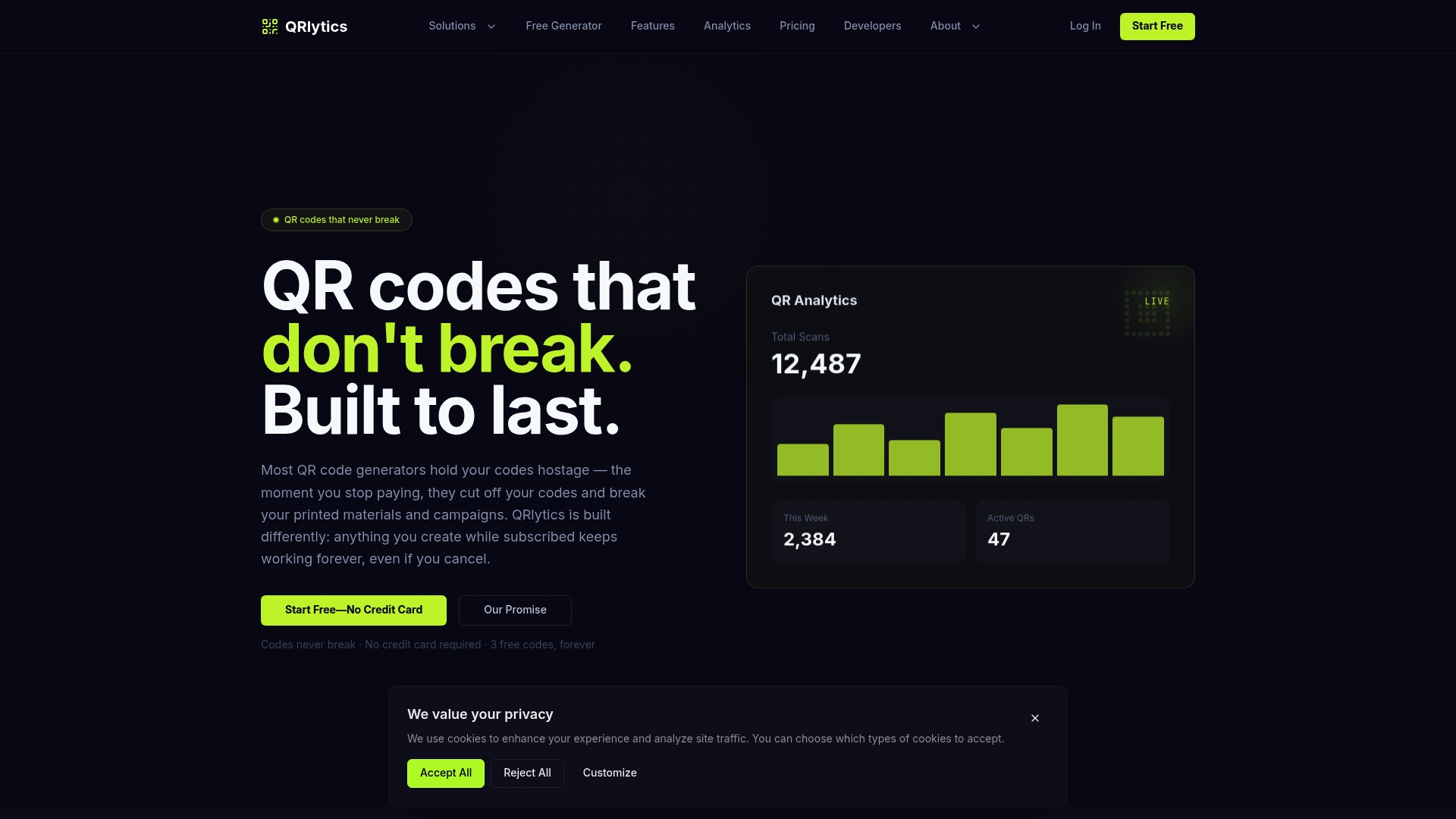
With Qrlytics, you can create a free QR code in seconds and, when you are ready, upgrade to dynamic codes that let you change the destination URL at any time without reprinting. Every scan is tracked in real time, with location data, device type, and scan volume displayed on a clear dashboard. Codes created during an active subscription remain functional permanently, so your printed materials are never at risk. No credit card is required to get started.
FAQ
Does Google have its own QR code generator?
Google does not offer a standalone QR code product, but Google Chrome generates QR codes from any open page via a right-click menu. For more advanced needs, Google Workspace Marketplace hosts add-ons such as AnyMerge and QR code for Google Forms.
What is the best free QR code maker for small businesses?
For bulk creation, AnyMerge integrated with Google Sheets is the most efficient free option. For individual codes with privacy protection, Go Tools and Xerobit process data entirely in-browser with no uploads, watermarks, or sign-up requirements.
Can I customise QR codes created with Google tools?
Chrome’s built-in generator offers no customisation. The QR code for Google Forms add-on supports logo and colour options on its premium tier. For full customisation including logos, colours, and error correction levels, browser-based tools like Xerobit are the better choice.
What file format should I use when downloading a QR code for print?
SVG is the correct format for any printed application. SVG scales infinitely without losing quality, whereas PNG files can blur when enlarged, which may cause scan failures on printed materials.
How do I stop my QR code from becoming inactive?
Static QR codes generated and saved as files never expire. Dynamic QR codes depend on the redirect service remaining active, so choose a provider that guarantees permanent functionality. Qrlytics explicitly ensures that codes remain active regardless of billing status.