Stop Reprinting Invoices: Dynamic, Secure QR Codes for Finance Teams

Yes, add QR codes to your invoices, and the simplest route is a dynamic QR code that links to a secure, mobile-friendly payment or invoice-details page. This approach speeds up payments, cuts manual entry errors and makes reconciliation far easier for your finance team. PayPal’s invoicing API already supports this natively, though you should pair any QR rollout with basic security checks to keep customers safe from scam codes.
TL;DR:
- Dynamic QR codes linking to editable URLs are preferred for invoices because they allow destination updates without reprinting or reissuing invoices.
- QR codes with embedded metadata enable automated invoice reading and faster reconciliation, especially useful in paper-based or field billing contexts.
- Proper placement, size, and contrast are critical for QR code scanning success, with best practices including placing codes near payment instructions and ensuring at least 2cm squares.
- Protect against QR code fraud by using HTTPS, recognizable landing pages, short-lived redirects, and instructing customers to verify URLs before payment.
- Reliable QR code providers should guarantee code permanence, support URL updates, offer scan analytics, and integrate seamlessly with billing and reconciliation systems.
Table of Contents
- What a QR code on an invoice actually does
- Why QR codes on invoices save you time and money
- How to add QR codes to PDFs, printed invoices and emails
- Quishing risks and how to protect your customers
- Getting the design and placement right
- Connecting QR payments back to your billing system
- What finance teams should require from a QR provider
- When invoice QR codes are worth prioritising
- Keep your invoice QR codes working with QRlytics
- FAQ
- Sources
What a QR code on an invoice actually does
A QR code on an invoice is a scannable square that points a customer’s phone to information or an action, usually a payment page. How it works depends on what you encode.
Three approaches cover most invoicing needs:
- Payment-link QR: the code opens a hosted checkout page where the customer pays directly.
- Redirect-with-invoice-ID: the code sends the scanner to your system, which looks up the invoice and displays the right amount and details.
- Fully encoded invoice data: the code itself carries metadata such as invoice number, amount and reference, useful for e-invoicing systems that read this data automatically, as Comarch’s explainer on QR codes in invoicing describes.
Static codes encode a fixed destination permanently, so changing the payment link later means reprinting everything. Dynamic codes point to a short URL you control, letting you update the destination without touching the printed or emailed invoice again. For invoicing, dynamic is almost always the better operational choice.
Why QR codes on invoices save you time and money
Scanning a code to pay removes several points of friction: no manual bank detail entry, no searching through email for a payment link, no typing errors on account numbers. That translates into faster payment cycles and fewer failed transfers.
The reconciliation gains matter just as much. When a QR code carries or redirects through an invoice ID, payments can match automatically to the right record instead of needing manual lookup. Comarch notes that QR codes support this kind of automated verification because they hold far more data than a traditional barcode.
QR codes carry significantly more data than barcodes, which is why e-invoicing systems increasingly use them to encode invoice metadata rather than just a simple link, according to Comarch’s analysis of e-invoicing adoption.
Benefits compound in specific contexts:
- Printed invoices, where a scan beats retyping a long payment URL.
- Field service billing, where a technician hands over a paper invoice on the spot.
- B2B accounts receivable, where mobile-first finance contacts expect a quick way to pay from their phone.
How to add QR codes to PDFs, printed invoices and emails
You have three practical routes, and most finance teams end up combining at least two.
- Use your payment provider’s API. PayPal’s generate-qr-code endpoint takes an invoice_id and returns a Base64 PNG, with parameters for width and height (150 to 500 pixels) and an action of either “pay” or “details”. The invoice must already be in a payable state, since the API documentation confirms the endpoint defaults the action to “pay” and requires a sent invoice.
- Generate a dynamic short URL and render it as a code. Point the URL at your payment page, map it to the invoice internally, then produce the QR image for your template. This gives you tracking and the ability to change the destination later without reissuing the invoice.
- Embed a Base64 PNG directly into your PDF generator. If your billing system builds invoices server-side, you can insert the QR image inline at the point of PDF creation, which is the approach several invoicing tools already use, as Autobooks’ product update on printed-invoice QR codes shows.
Before rolling out to your full customer base, run a short testing checklist: scan on both iOS and Android, confirm the destination loads over HTTPS, complete a full test payment, and verify the webhook or callback correctly reconciles against the right invoice.
Pro Tip: Test your QR code at actual print size before a full batch run. A code that scans fine on screen can fail once shrunk to fit a small invoice footer.
Quishing risks and how to protect your customers
QR codes carry a specific threat: quishing, where attackers replace a legitimate code with one of their own or distribute lookalike invoices containing a malicious redirect. The FBI’s guidance on QR code scams warns that scanners should verify where a code leads before entering payment details, and that operators need controls to detect tampering.
The FBI has specifically flagged QR code scams, or “quishing”, as a method criminals use to redirect victims to fraudulent payment pages, according to its Tech Tuesday guidance. That makes landing page trust a core part of any invoice QR strategy, not an afterthought.
Practical mitigations include:
- Serve payment pages exclusively over HTTPS with a valid certificate.
- Use branded, recognisable landing pages rather than generic checkout screens.
- Favour short-lived or managed dynamic redirects over permanent static links to unknown domains.
- Train customers to check the destination URL before entering card or bank details.
On the operational side, place printed codes where tampering would be obvious, such as integrated into the invoice layout rather than a separate sticker, and monitor scan patterns for anomalies that might signal a compromised code.
Getting the design and placement right
A QR code that nobody can scan is worse than no code at all. Placement, size and contrast all affect completion rates.
For printed invoices, put the code near the amount due and payment instructions, not buried in a footer with other fine print. On screen, place it above the fold in the invoice PDF or email so customers see it without scrolling. Keep a quiet zone, a clear margin of at least four modules, around every code, and print at a minimum of 2cm by 2cm to stay scannable at arm’s length. On digital invoices, a code around 150 to 200 pixels square is generally enough to work from phone cameras.

Always include a human-readable payment URL alongside the code, plus one line of plain instructions (“scan to pay, or visit the link below”). This covers customers whose cameras cannot scan and keeps manual reconciliation possible when they type the link instead.
For tracking, append internal query parameters or UTM tags to the destination URL so each scan event ties back to a specific invoice and customer, a technique covered in more detail in QRlytics’ guide to advanced scan tracking.
Pro Tip: Keep one invoice template with the QR code in a fixed position. Moving it between batches confuses recurring customers who’ve learned where to look.
Connecting QR payments back to your billing system
A QR code is only useful if the payment it triggers lands back in the right place in your books. The typical flow runs: create invoice, generate QR, send invoice, customer scans, payment provider sends a callback, your system reconciles.
PayPal’s invoicing QR flow illustrates the developer side of this: the generate-qr-code endpoint takes the invoice_id and an action parameter, and the resulting payment ties back to that same invoice automatically. If you build your own redirect layer instead of using a provider’s native QR tool, make sure your webhook payloads or redirect mapping always carry the invoice reference, otherwise reconciliation reverts to manual matching.
Checklist for the integration:
- Confirm your payment provider’s webhook includes the invoice ID or a reference you can map to it.
- Log every scan event, not just completed payments, so you can measure scan-to-pay conversion.
- Store the QR destination mapping centrally so a support team can trace any code back to its invoice.
QRlytics’ guide on integrating QR generation with billing workflows covers this mapping process in more depth for teams building the connection themselves.
What finance teams should require from a QR provider
The most common operational failure with invoice QR codes is not security, it is permanence. A code generated through a free tool or a provider account that later lapses can simply stop working, leaving a customer holding a paper invoice with a dead link.
Before committing to a QR approach at scale, finance and IT teams should check for a few specific controls: a stated guarantee that codes keep working regardless of billing status, the ability to update a destination URL after the code is printed, usable scan analytics for reconciliation and audit purposes, and API or webhook access for teams that want to automate generation. Vendor support pages, such as Yardbook’s guide to adding QR codes to invoices, show how smaller billing tools already build this directly into their settings, which is worth comparing against a dedicated QR platform’s permanence and tracking depth.
When invoice QR codes are worth prioritising
Adopt quickly if your customers are mobile-first, you still mail or hand over printed invoices, or you run field collections where a quick scan beats a card terminal. Everyone else can pilot first. A sensible test runs a small batch of invoices, measuring scan-to-pay rate and how much manual reconciliation work actually disappears, an approach similar to the small-batch rollout Autobooks described when it added QR codes to printed invoices.
— The
Keep your invoice QR codes working with QRlytics
Most QR tools quietly break your codes the moment a subscription lapses or a payment fails, which is exactly the wrong time to find out your printed invoices are now pointing nowhere. QRlytics guarantees that any code created during an active subscription keeps working permanently, even after cancellation, so an invoice template you rolled out last year doesn’t become a liability this year.
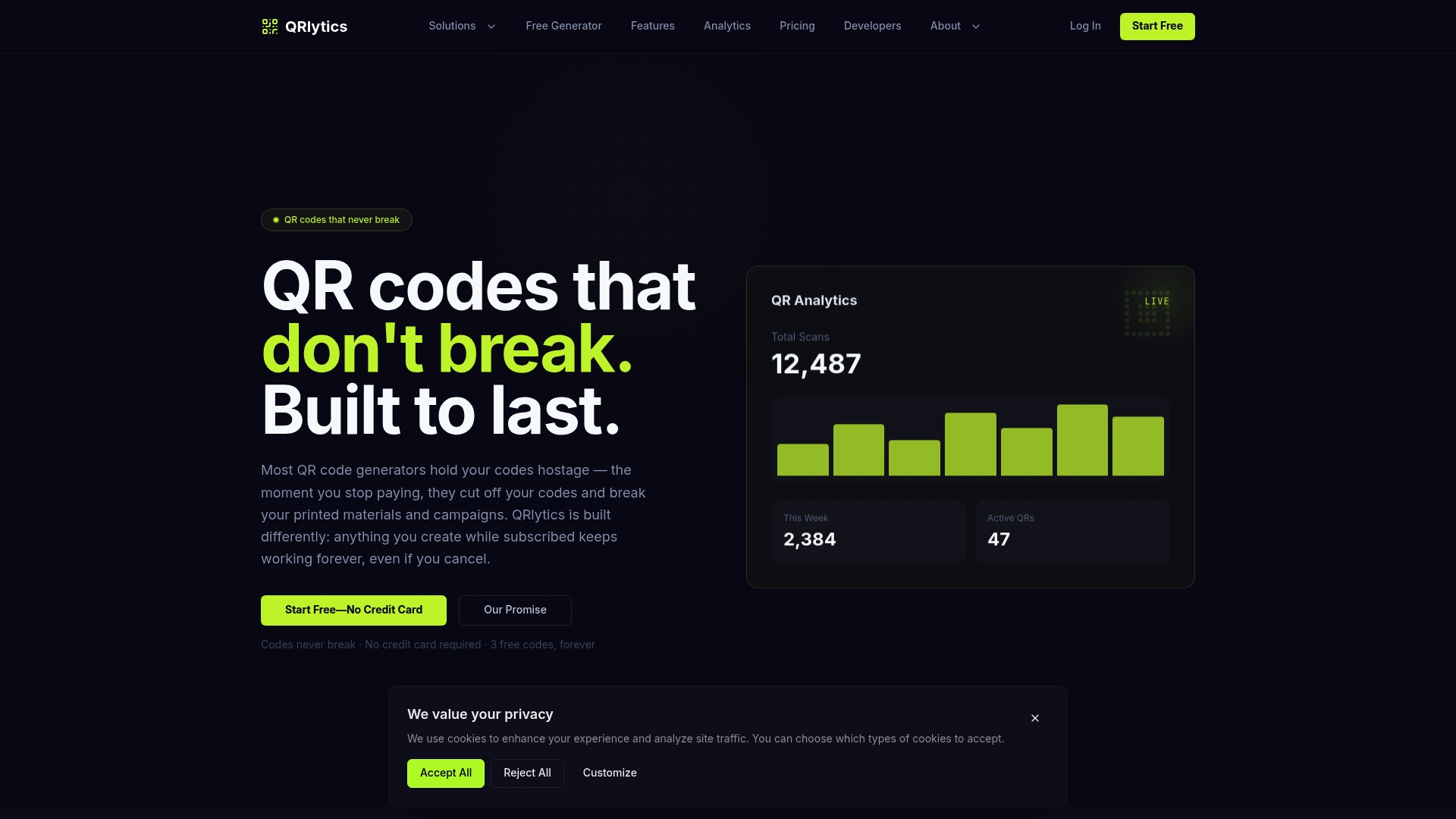
For invoicing specifically, that means you can generate a dynamic code once, update the destination if your payment processor changes, and trust that customers scanning an invoice from months ago still land somewhere real. QRlytics also gives you:
- Dynamic URL updates without reprinting a single invoice.
- Real-time scan analytics with heat maps, useful for spotting which customer segments pay fastest after scanning.
- GDPR-compliant tracking and API access for teams building their own reconciliation flow.
Start with the free QR code generator to test a single invoice template, then move to the Pro plan once you’re ready to roll QR payments out across your billing system. No credit card is needed to begin.
FAQ
How can I create QR codes for my invoices?
Use your payment provider’s invoicing API if it offers one, such as PayPal’s generate-qr-code endpoint, or generate a dynamic QR code through a dedicated QR platform and point it at your payment page. Either way, test the code on both iOS and Android before sending it to customers.
How do I put a QR code on an invoice?
Generate the code as a PNG image and insert it into your invoice template, ideally near the amount due and payment instructions rather than in a footer. For PDFs built server-side, you can embed a Base64 PNG directly at generation time, an approach Autobooks uses for printed invoices.
Is a QR code mandatory on an invoice?
No single global rule requires a QR code on every invoice, and whether one applies depends on your country’s own e-invoicing or tax regulations. Check your local tax authority’s current invoicing requirements before assuming a QR code is either required or optional for your business.
What is the disadvantage of QR code payments?
The main risk is quishing, where a fraudulent QR code is swapped in or distributed to redirect customers to a fake payment page, a threat the FBI has specifically warned about. Mitigate it with HTTPS-only destinations, branded landing pages and customer instructions to verify the link before paying.
Sources
- Generate QR code | PayPal Developer
- FBI Tech Tuesday: Building a digital defense against QR code scams
- The Role of QR Codes in the Evolution of Invoicing