Free QR code generator for teachers: 2026 guide
TL;DR:
- A free QR code generator for teachers creates scannable codes for URLs, WiFi, or text to enhance classroom efficiency. Static codes with Level H error correction, customization, and thorough testing ensure reliable scanning across devices and conditions. Proper design, size, and testing are essential to prevent common issues and maximize student engagement.
A free QR code generator for teachers is a web-based tool that converts URLs, WiFi credentials, or text into scannable square codes students can access instantly with any smartphone. Tools like QRWink, Molixa, and Canva have made this process genuinely simple, requiring no technical knowledge and no cost. The real value is speed: you print a code onto a worksheet, and students skip the faff of typing long URLs. This guide covers which features matter most, how to create codes that actually scan reliably, and the mistakes that quietly ruin classroom QR code projects before they start.
What features should a free QR code generator for teachers have?
The best QR code maker for educators does more than produce a black-and-white square. It gives you control over code type, design, and durability without charging you for the privilege.

Code type support matters more than you think
Most teachers start with URL codes, but the most useful generators support far more. QRWink supports nine QR code types including URL, WiFi, vCard, WhatsApp, Email, SMS, Phone, Location, and Text. That range matters because sharing WiFi credentials via a printed code alone saves five minutes of class time every session. Molixa goes further, offering over 20 QR types with unlimited free generation and no watermark, which makes it practical for batch-printing across an entire department.
Static vs dynamic codes: which is right for classrooms?
This distinction is the most important technical choice you will make. Static QR codes embed data directly into the code itself and require no server to function. Dynamic codes point to a redirect URL hosted by the generator’s servers, which means if the provider has billing issues or shuts down, your codes stop working. For printed classroom materials, static codes are the safer choice. You print once, and the code works indefinitely regardless of what happens to the tool you used.
The features worth checking before you commit
Look for these before choosing your generator:
- No signup required for basic code creation
- No watermark on downloaded files
- Customisation options including colour, logo, and frame
- Error correction level H (tolerates up to 30% code damage, which matters for printed sheets that get folded or smudged)
- SVG or high-resolution PNG export for clean printing at any size
| Feature | Why It Matters for Teachers |
|---|---|
| Static code generation | Codes work forever without server dependency |
| Error correction Level H | Codes stay scannable despite physical damage |
| No watermark | Professional appearance on printed materials |
| Multiple code types | Supports WiFi, URL, vCard, and more |
| Custom colours and logo | Increases student scan rates and trust |
Pro Tip: Always export your QR code as an SVG file if the generator offers it. SVG scales to any print size without losing sharpness, so your code looks clean on both A4 worksheets and A1 display posters.
How do you create QR codes for classroom use step by step?
Creating effective QR codes for lessons takes about three minutes once you know the process. The steps below apply to any reputable free online QR code tool.
-
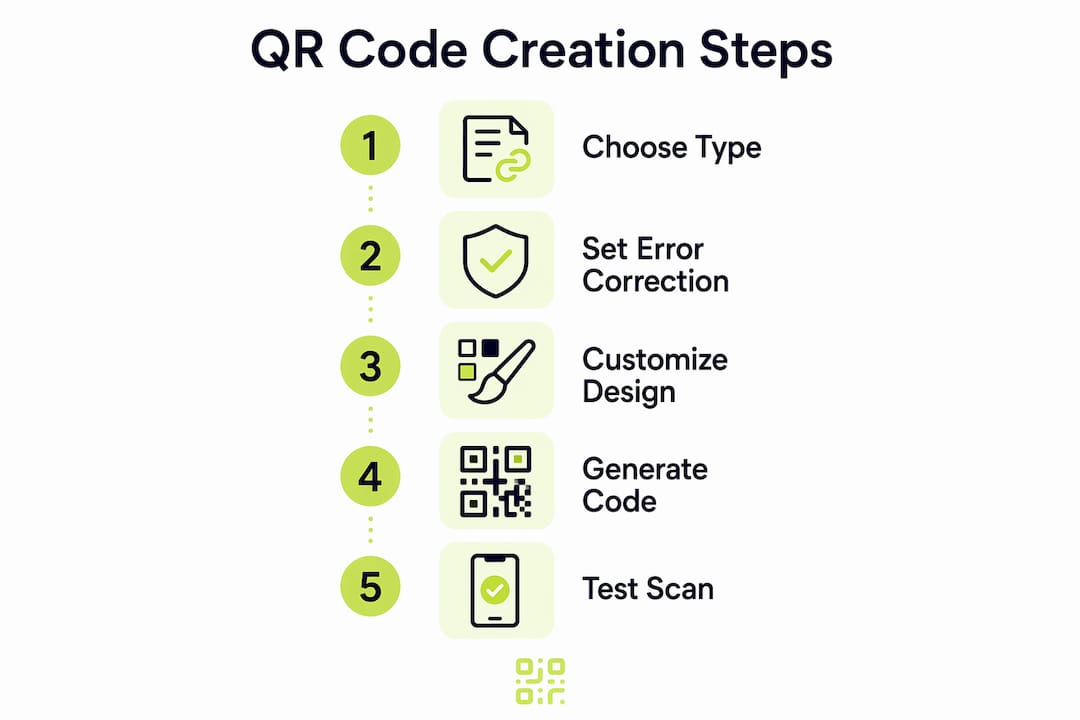
Gather your destination content. Collect the URLs, WiFi passwords, or text you want to encode. Shorten long URLs using a tool like Bitly before encoding them. Shorter URLs produce less dense QR codes, which scan more reliably in poor lighting.
-
Choose the correct code type. Select URL for web links, WiFi for network credentials, or Text for short instructions. Matching the type to the content avoids encoding errors that produce unreadable codes.
-
Set error correction to Level H. Error correction Level H allows a code to remain scannable even when up to 30% of it is obscured or damaged. This is the right setting for any material that will be handled by students.
-
Customise the design. Add your school colours or a small logo to the centre of the code. Branded QR codes increase scan rates by up to 30% compared to plain black-and-white versions. Students are more likely to scan a code that looks intentional and trustworthy.
-
Check the quiet zone. The quiet zone is the empty white border surrounding the code. It must be at least four modules wide on all sides. Cutting into this margin is one of the most common reasons codes fail to scan.
-
Export at the correct resolution. Download as SVG for print or PNG at a minimum of 300 DPI. Anything lower produces a pixelated code that mid-range phone cameras struggle to read.
-
Test on multiple devices before printing. Test your code on both iOS and Android devices and in your actual classroom lighting conditions. Fluorescent overhead lighting and glossy paper can both interfere with scanning. Test before you print 30 copies.
-
Embed into your materials. Place the code in the top-right corner of worksheets or at eye level on display boards. Canva’s QR code generator lets you embed codes directly into designs for worksheets and posters without switching between tools.
Pro Tip: Print one test copy and scan it from across the room before running the full print job. If it scans from two metres away, it will work reliably for students using budget Android phones.
For a deeper look at how QR code generation techniques translate into classroom engagement, the Qrlytics blog covers the full process with practical examples.
What are the most common QR code mistakes in classrooms?
Teachers who are new to using QR codes as educational resources often encounter the same set of problems. Most are avoidable with a small amount of preparation.
Poor colour contrast is the leading cause of scan failure. Dark codes on dark backgrounds, or light codes on white paper with a coloured tint, confuse phone cameras. The quiet zone and colour contrast are the two factors that most directly determine whether a code scans reliably. Always use a dark code on a plain white background as your default.
Codes printed too small are the second most common issue. A QR code printed smaller than 2.5 cm × 2.5 cm is difficult for most smartphone cameras to lock onto, particularly in a busy classroom environment. If your code will appear on a worksheet alongside other content, reserve at least 3 cm × 3 cm.
Relying on dynamic codes from free-tier services creates a long-term risk. If the provider changes its pricing or experiences downtime, your printed materials become useless overnight. Static codes avoid this entirely.
Skipping the test step is the mistake that causes the most disruption. A code that looks correct on screen can still fail to scan if the export resolution was too low or the quiet zone was accidentally cropped during layout.
“A QR code that fails in front of 30 students does more damage to classroom technology adoption than never using one at all. Test every code, on every device type, before it reaches a student’s hands.”
Low error correction settings mean a single coffee ring or fold can render a code permanently unreadable. Set error correction to Level H for anything that will be printed and handled repeatedly.
How can teachers use QR codes to improve student engagement?
QR codes as educational solutions go well beyond linking to a webpage. The most effective classroom applications connect physical materials to digital experiences in ways that feel natural to students.
- Link worksheets to video tutorials. Attach a QR code to a maths problem set that points to a worked example on YouTube. Students who are stuck can self-serve without interrupting the lesson.
- Share Google Classroom assignments instantly. Generate a URL code for your Google Classroom assignment link and print it on the board. Students join the task in seconds rather than typing a long class code.
- Provide WiFi access without reading out passwords. A WiFi QR code printed on a card at each desk removes the disruption of students asking for the network password at the start of every session.
- Collect anonymous feedback via Google Forms. Link a QR code to a Google Form exit ticket. Anonymous responses tend to be more honest, giving you better data on where students are struggling.
- Run QR code scavenger hunts. Place codes around the classroom or library, each linking to a clue or a piece of information. This works particularly well for history, science, and language lessons where discovery-based learning improves retention.
- Display reading resources on library shelves. A code next to a book can link to a review, an author interview, or a related reading list, turning a static shelf into an interactive resource.
Boosting student engagement with QR codes is most effective when the codes are visually distinct and clearly labelled so students know what they are scanning before they point their camera.
Key takeaways
The most reliable free QR code generator for teachers produces static codes with Level H error correction, custom branding, and no watermark, tested on multiple devices before printing.
| Point | Details |
|---|---|
| Choose static over dynamic codes | Static codes work indefinitely without depending on a provider’s servers or subscription status. |
| Set error correction to Level H | Level H tolerates up to 30% damage, keeping codes scannable on handled classroom materials. |
| Customise for higher scan rates | Branded codes increase student scan engagement by up to 30% compared to plain designs. |
| Test before printing | Always scan on both iOS and Android in your actual classroom lighting before distributing copies. |
| Match code type to content | Use WiFi, URL, or vCard types correctly to avoid encoding errors that produce unreadable codes. |
Why QR codes in classrooms reward the teachers who get the details right
Most teachers who try QR codes and give up do so because of one bad experience: a code that would not scan, printed on 30 worksheets, with a queue of confused students. That single failure tends to put people off the whole idea for months.
What I have observed consistently is that the failure was almost never the technology. It was a skipped test, a code printed at 1.5 cm, or a dynamic code from a free service that quietly expired. The underlying tools, whether QRWink, Molixa, or Canva, are genuinely reliable when used correctly.
The teachers who get the most from QR codes treat them the way they treat any printed resource: they proof them before distribution. They also think beyond URL sharing. A WiFi code on a laminated card, a Google Form exit ticket on the back of a worksheet, a scavenger hunt that takes students around the library: these are the uses that make QR codes feel like a natural part of the lesson rather than a gimmick.
My honest advice is to start with one static code, one clear use case, and one test print. Get that working reliably, then expand. The teachers who try to deploy ten codes at once before they have mastered the basics are the ones who end up frustrated.
— The
Try Qrlytics free: built for educators who need codes that last
If you want a free QR code generator that does not cut corners, Qrlytics is worth your time. You can create QR codes instantly with no signup, no watermark, and no expiration on the codes you generate. The platform supports multiple code types, custom branding with your school colours or logo, and high-resolution exports ready for print.
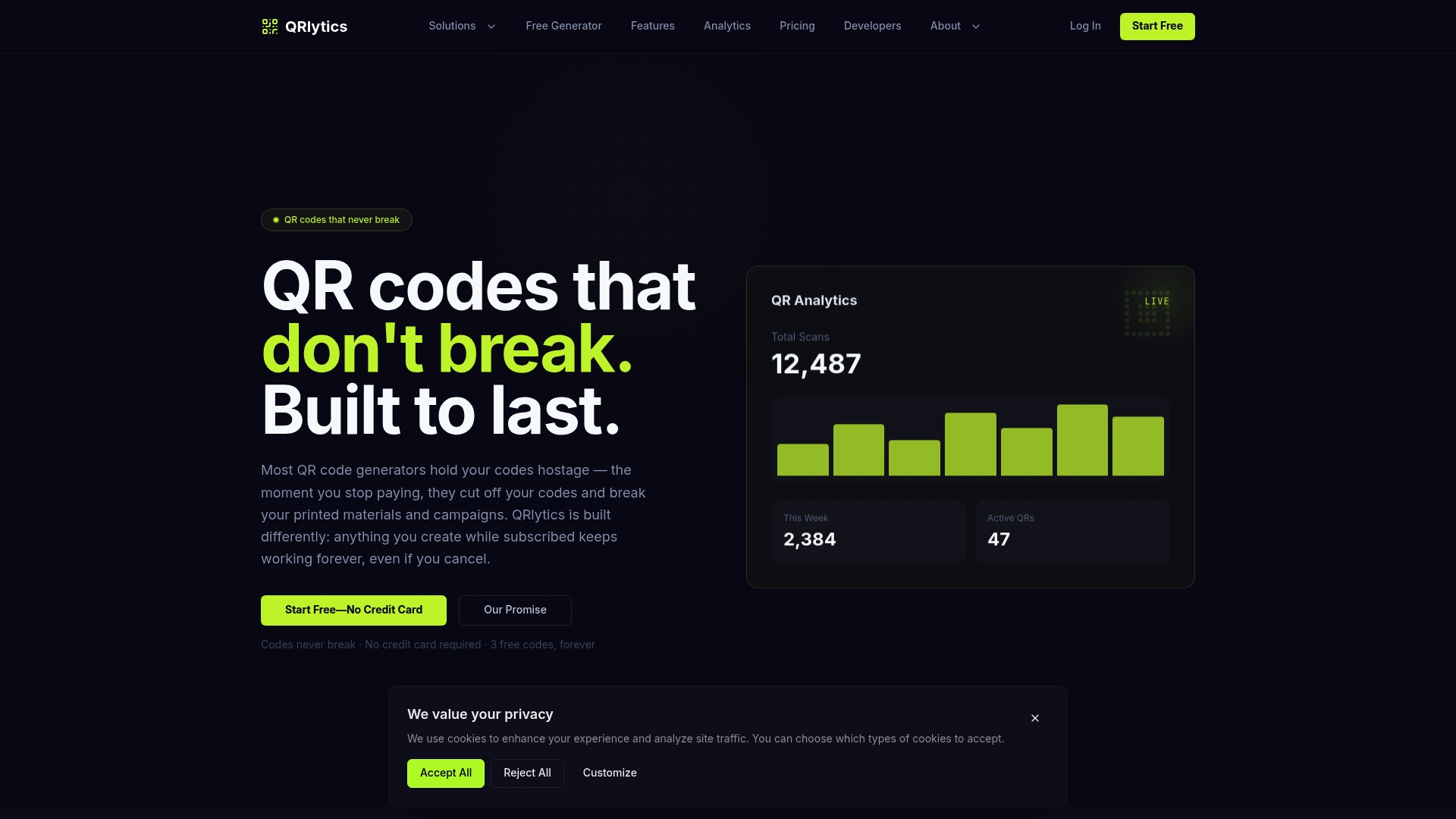
Qrlytics also offers dynamic QR codes for situations where you need to update the destination URL after printing, which is useful for resources that change across terms. Unlike many free services, Qrlytics guarantees that codes created during an active subscription remain functional regardless of billing status. For teachers who print materials in bulk and cannot afford broken codes mid-term, that reliability matters.
FAQ
What is the best free QR code generator for teachers?
QRWink, Molixa, and Canva are all strong options for educators, each offering free code generation with no watermark. Qrlytics is a reliable choice for teachers who need custom branding, multiple code types, and codes that do not expire.
Should teachers use static or dynamic QR codes?
Static QR codes are the better choice for printed classroom materials because they embed data directly and do not depend on a provider’s servers. Dynamic codes offer the ability to update the destination URL after printing but carry a risk of breaking if the hosting service changes.
How small can a QR code be on a printed worksheet?
A QR code should be no smaller than 2.5 cm × 2.5 cm on printed materials, with 3 cm × 3 cm recommended for classroom use. Codes smaller than this are difficult for smartphone cameras to read, particularly on budget Android devices.
Why does my QR code fail to scan in the classroom?
The most common causes are poor colour contrast, a cropped quiet zone border, a code printed at too low a resolution, or a dynamic code from a service that has gone offline. Scanning reliability depends directly on adequate contrast and a clear margin around the code.
Can i add my school logo to a free QR code?
Yes. Tools like QRWink and Qrlytics allow you to add a logo to the centre of a QR code at no cost. Adding a logo reduces the scannable area slightly, so always set error correction to Level H when embedding an image to maintain reliability.