QR API Authentication: Keys, Requests and Safe Setup
Authenticating with a QR code API means proving to the service that a request really comes from your account, almost always with a secret API key sent along with each call. Get that right and your team can create, update and read scan data for printed codes from your own systems. Get it wrong and a leaked key lets someone else edit the destinations behind your posters, packaging and menus. This guide covers what you need, how a request is built, how to store keys safely and how to fix the errors you will meet first. It is written for marketers, agency teams and print publishers who work with a developer, not only for developers.
TL;DR
- API authentication proves who is calling the service. It is a different thing from QR-code login, where a code is scanned to sign someone in to a website.
- Most QR code APIs use a secret API key, sent in a request header over HTTPS, never in the web address.
- Keep keys out of source code, spreadsheets and page templates. Store them in a secrets manager, give them the least access needed and rotate them.
- When a call fails, read the status code first: 401 and 403 point to credentials or permissions, 429 means you are sending too many requests.
- On QRlytics, codes you create during an active subscription keep working permanently, so a change in your integration never breaks what is already printed.
Table of Contents
- Two meanings of “QR authentication”
- What you need before you send a request
- How an authenticated request is built
- Keeping the API key safe
- Why the destination, not the code, deserves your attention
- Verifying that authentication works
- Troubleshooting common errors
- Measuring what the integration delivers
- Our perspective
- Start with a free account
- FAQ
- Sources
Two meanings of “QR authentication”
The phrase covers two quite different things, and search results mix them up.
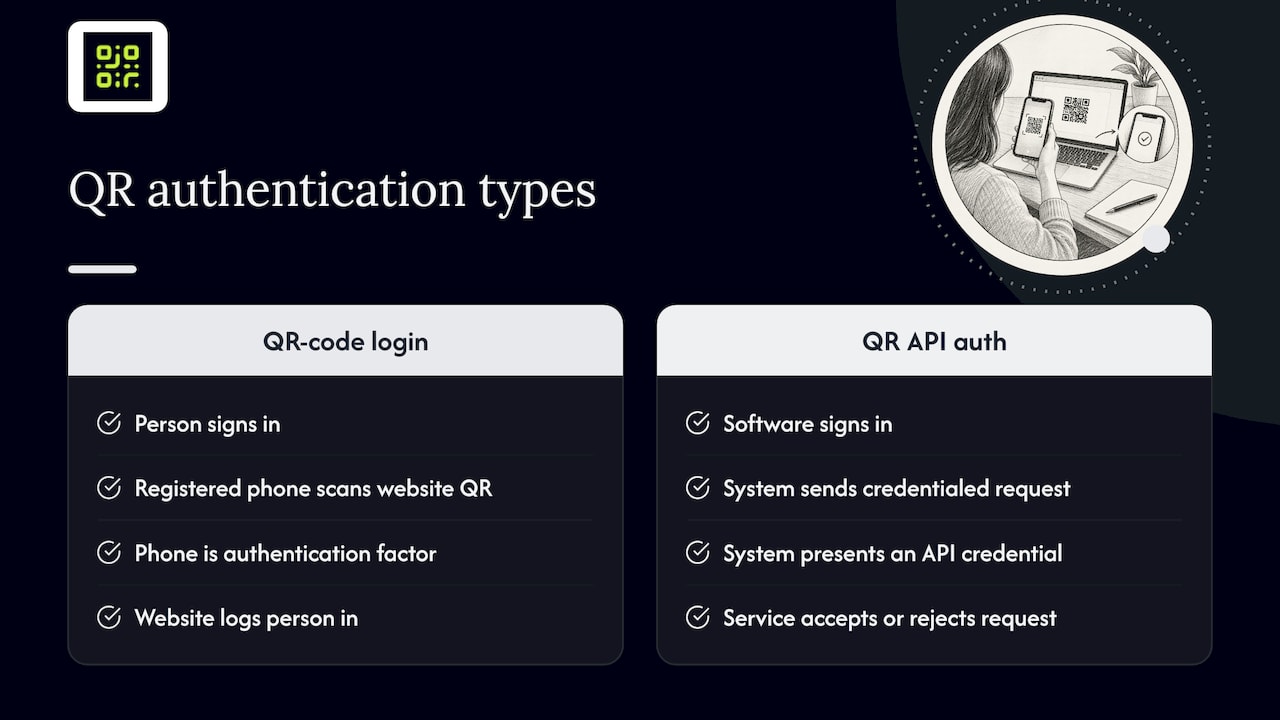
QR-code login is a way for a person to sign in. A website shows a QR code, the person scans it with a phone app they have already registered, and the site logs them in without a password. The OASIS standard for this, Secure QR Code Authentication, describes the code as a way to carry authentication data between a browser and a trusted phone. It also makes a point that surprises many people: the QR code is not the authentication factor. The phone is the “something you have”.
QR API authentication is a way for software to sign in. Your website, CRM, campaign tool or print workflow calls a QR code service to create codes, change where they point or pull scan figures. Nobody scans anything. Your system presents a credential, and the service decides whether to accept the request.
This article is about the second meaning. If you are building a passwordless login for your own app, the OASIS document linked above is the place to start, and it is a job for your security team rather than your marketing team.
What you need before you send a request
For an API integration with a QR code platform, you generally need four things:
- An account with API access. On QRlytics, API access sits in the paid annual plans, while the free tier is limited in codes and analytics. The pricing page lists the plans.
- An API key. This is a long random string tied to your account. Treat it like a password: whoever holds it can act as you within its permissions.
- The documented base address and endpoints. These are the web addresses you call to create a code, update a destination or read analytics. Use the provider’s own documentation for the exact paths.
- A place to keep the key. This is the part most teams skip, and it is where most problems start. More on it below.
A useful habit is to decide up front who owns the key. In an agency, that is often a developer or technical lead. In a small business it may be the owner. Write the name down, because the person who owns the key is the person who rotates it.
How an authenticated request is built
The pattern is the same across most REST APIs, whichever QR service you use. Every request carries three things.
- The address. It must start with https, so the traffic is encrypted. OWASP’s REST Security Cheat Sheet recommends HTTPS-only endpoints for exactly this reason.
- The credential, in a header. A header is a line of metadata sent with the request. The API key normally goes in an authorisation or key header, as the provider’s documentation specifies. The same OWASP guidance says to keep keys out of URLs, because web server logs can capture addresses, and to send credentials in headers instead.
- The body. For creating or editing a code, this is a small block of data such as the destination URL, the code’s name and any styling.
A worked example makes it concrete. Say a retail chain prints 400 shelf-edge codes and wants each to point to a product page. Instead of creating 400 codes by hand, a developer writes a script that loops through a product list and sends one authenticated request per product. The key is read from a secure store when the script starts, never typed into the script. If a product page moves next season, a second script sends an update for each code’s destination. The printed labels stay as they are.
That last step is the real value of a dynamic code. The printed pattern points to a redirect, and the destination behind it can be changed through the API. Our guide to QR API integration walks through how that lets you track campaigns without reprinting codes.
Keeping the API key safe
A key in the wrong place is the most common way an integration goes wrong. The OWASP Key Management Cheat Sheet is direct about it: API keys should never be committed to source repositories or embedded in build artefacts, should live in a dedicated secrets manager or key vault, and should never be stored in plaintext.
In plain terms, that rules out:
- pasting the key into a script that is saved in a shared folder or code repository;
- putting it in a spreadsheet, a slide deck or a chat message;
- placing it in website page code or a mobile app, where any visitor can read it;
- sharing one key between every agency, freelancer and tool.
The OWASP Secrets Management Cheat Sheet adds habits that are easy to adopt:
- Least privilege. Give each integration only the access it needs. A reporting dashboard that reads scan data should not hold the ability to change destinations.
- Rotation. Replace keys regularly, so a stolen one works only briefly.
- Revocation. Cancel a key at once if it may have leaked.
- Expiry. Where possible, set keys to expire after a defined time, and have the application check that a secret is still active before trusting it.
One caution from the same OWASP REST guidance: API keys help limit abuse, but they are relatively easy to compromise when handed to third parties, so they should not be the only protection for high-value resources. If an agency needs access, give it its own key rather than yours, and remove it when the project ends.
A simple key checklist for non-developers
You do not need to read code to run this check once a quarter:
- Ask your developer where each key is stored and who can read it.
- List every tool and vendor that uses a key, and the date each key was last replaced.
- Remove keys for people and projects that have finished.
- Confirm that no key appears in an email, a document or a public page.
Why the destination, not the code, deserves your attention
Authentication protects your ability to change where a code points. That matters because a printed code is permanent while its destination is not. If someone gains control of a destination, every poster, menu or package carrying that code sends customers to the wrong place. That is why this is a brand matter as much as a technical one.
Two practical habits help. Use HTTPS destinations only, and use a domain your customers recognise, so people can tell a legitimate code from a fake. And keep a log of who changed what, so an unexpected edit is noticed quickly. QRlytics also offers cryptographic authentication certificates for codes, which is a separate feature from API keys: the key proves who is calling the service, while a certificate relates to the code itself.
Verifying that authentication works
Before you connect anything to a live campaign, run a small test with a code you will not print.
- Make one read-only call first, such as listing your codes. If it succeeds, the key and the address are right.
- Create a throwaway code, scan it with a phone and confirm it lands where you expect.
- Update its destination and scan again. The same printed pattern should now lead to the new page.
- Delete or archive the test code so it does not pollute your reports.
- Check the scan appears in your analytics. If you plan to push scan data into a sales system, the guide on sending QR scan data to your CRM shows what to connect next.
Troubleshooting common errors
When a call fails, the HTTP status code tells you where to look. These are standard web conventions, so they apply whichever service you use. Always confirm the details in the provider’s own documentation.
| Status | Usual meaning | What to check |
|---|---|---|
| 400 | The request body is malformed | Missing field, bad URL format, invalid JSON |
| 401 | Credentials missing or not accepted | Key typed correctly, sent in the right header, not revoked or expired |
| 403 | Credentials accepted, action not allowed | The key’s permissions, or a plan limit |
| 404 | Address or code not found | Typo in the endpoint, wrong code identifier |
| 429 | Too many requests | Slow the script, add a short pause between calls |
| 5xx | Fault on the server side | Wait and retry |
A few patterns come up again and again:
- Works on a laptop, fails in production. The key was set on one machine but never added to the live environment’s secure store.
- Worked yesterday, fails today. The key was rotated or revoked, or it reached its set expiry.
- Fails only for a bulk job. You are probably hitting a rate limit. OWASP’s guidance is that services should return 429 for excessive rates, so spread the calls out.
- A key has appeared somewhere public. Revoke it straight away and issue a new one. Do not wait to see whether anyone used it.
Measuring what the integration delivers
Authentication is only the doorway. The point of connecting a QR service to your own systems is to see which printed placements earn scans and which turn into customers. Our walkthrough of QR code analytics metrics covers what to track from scan to conversion, and the broader case for measurement is made in this piece on why marketing analytics improves ROI.
Our perspective
Most advice about QR integrations starts with the technology. We start with the printed object. A code on a shop window, a menu or a magazine page will be there for months or years, and the integration that manages it has to be at least as dependable as the paper.
That is why we built QRlytics around permanence. Codes created during an active subscription keep working, even if billing changes later. Your key, your team and your agency can change, and the code on the wall does not.
For authentication, our advice is plain: give each tool its own key, keep keys in a secrets manager, rotate them, and test with a throwaway code before anything goes to print. Pair that with dynamic URL updates, scan analytics that follow GDPR rules and lifecycle scheduling, and your team keeps control of every campaign long after the print run.
*The
Start with a free account
QRlytics has a Free plan at $0 per year with a limited number of codes and limited analytics, and you do not need a credit card to sign up. Pro unlocks unlimited codes, advanced analytics and API access, and the pricing page shows what each plan includes. You can create your first editable code with the dynamic QR code generator and see the scan analytics before you plan an integration.
If your team already prints at volume, the marketing solutions page shows how campaign tracking fits into the work.
FAQ
Is a QR code API key the same as QR-code login?
No. An API key lets your software call a QR code service, for example to create codes or read scan data. QR-code login lets a person sign in to a website by scanning a code with a registered phone app. They share a name but solve different problems.
Where should I put my API key?
In a secrets manager or key vault, read by your application when it starts. OWASP advises against committing keys to source repositories, embedding them in build artefacts or storing them in plaintext. Never place a key in public page code, a spreadsheet or an email.
Why does my request return 401 or 403?
A 401 usually means the key is missing, mistyped, sent in the wrong header or no longer valid. A 403 usually means the key was recognised but lacks permission for that action. Check the key’s scope and your plan, then confirm the details in the provider’s documentation.
How often should I rotate API keys?
OWASP recommends regular rotation and, where possible, defined expiry times, so a stolen key works only briefly. Pick a schedule your team can keep, such as quarterly, and replace a key at once if it may have been exposed or if a person with access leaves.
Will changing or revoking a key break my printed codes?
The key controls who can manage codes through the API, not whether a printed code scans. With QRlytics, codes created during an active subscription keep working permanently, so rotating a key is a safe routine.
Sources
- Secure QR Code Authentication Version 1.0, OASIS
- Key Management Cheat Sheet, OWASP
- Secrets Management Cheat Sheet, OWASP
- REST Security Cheat Sheet, OWASP